Cairegiver

Hubitat Elevation Setup Guide

Set Up Your Hub

Welcome! Follow this step-by-step guide to set up your Hubitat Elevation hub. You can also open go.hubitat.com on your phone and follow along with each screen.

Set Up Your Hub

1

Verify your package contents

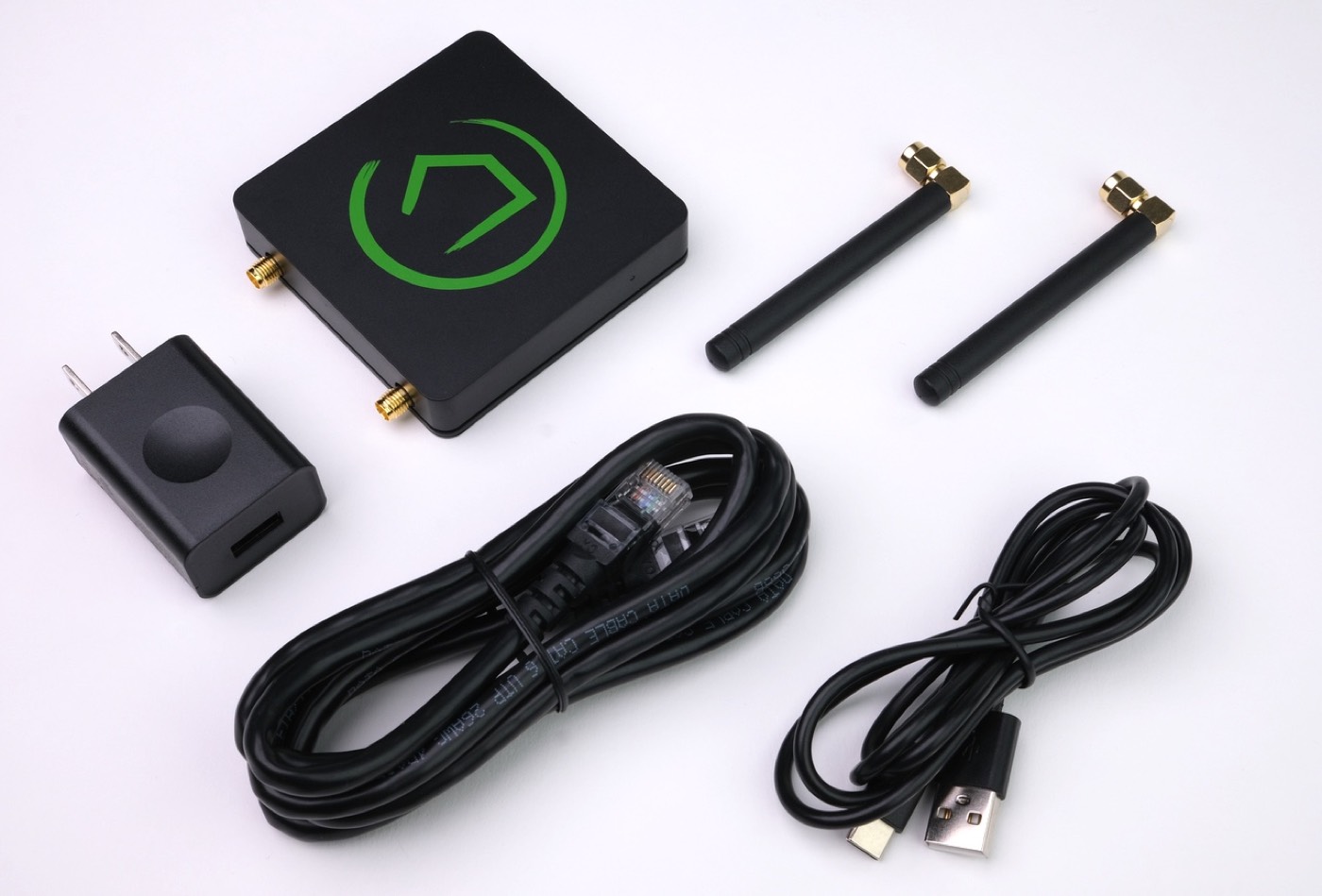
Before you begin, make sure your box includes all of the following items:

Hubitat Elevation hub, power supply, Ethernet cable, USB cable, and two antennas
Hubitat Elevation hub and included accessories
2

Affix the antennas

Attach both external antennas to your hub. Position them vertically, pointing straight up, for the best performance.
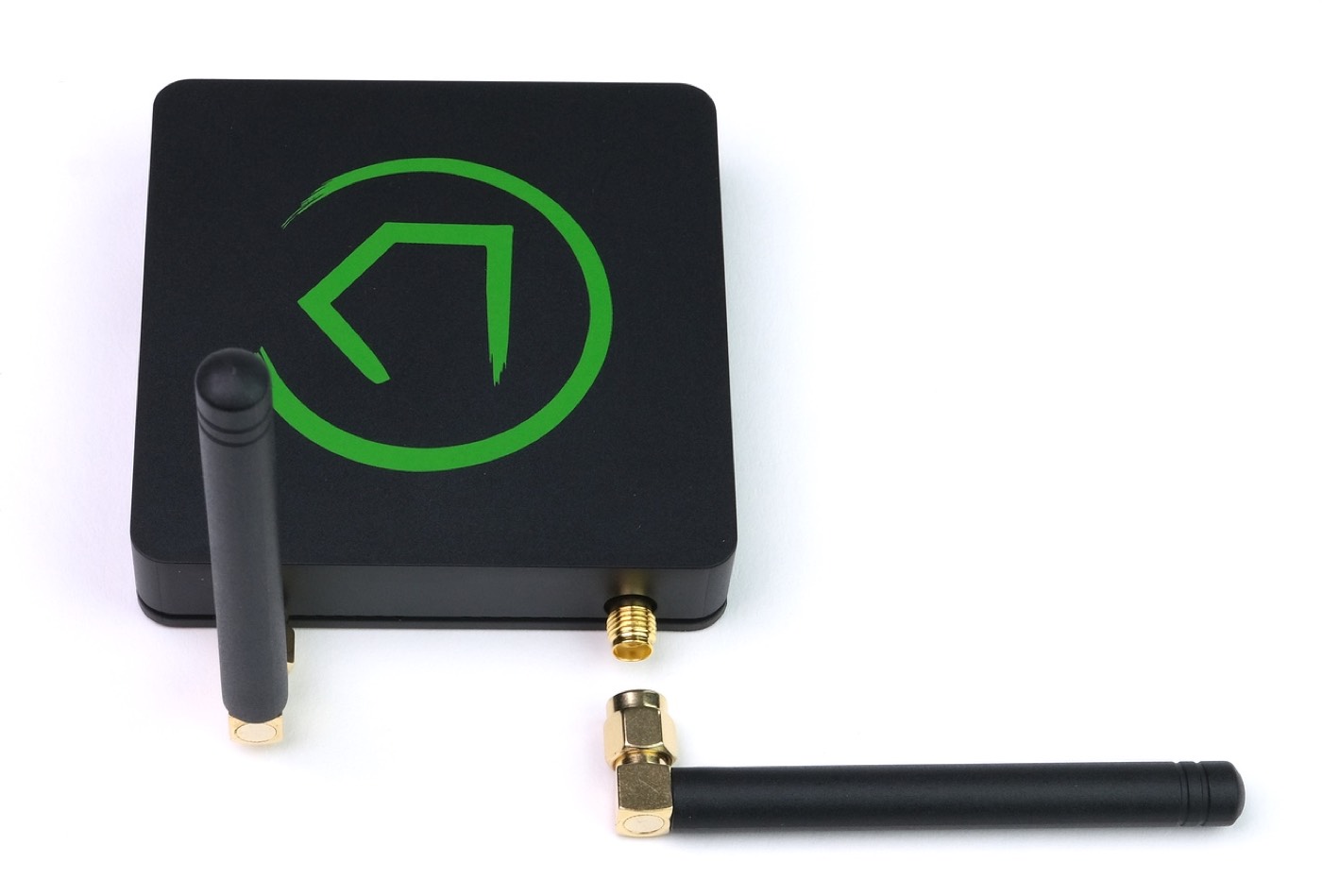
Hubitat hub with one antenna attached and the second antenna ready to screw on
Attach both antennas and point them straight up
3

Connect the power supply

Connect the hub to the power supply using the included USB cable.
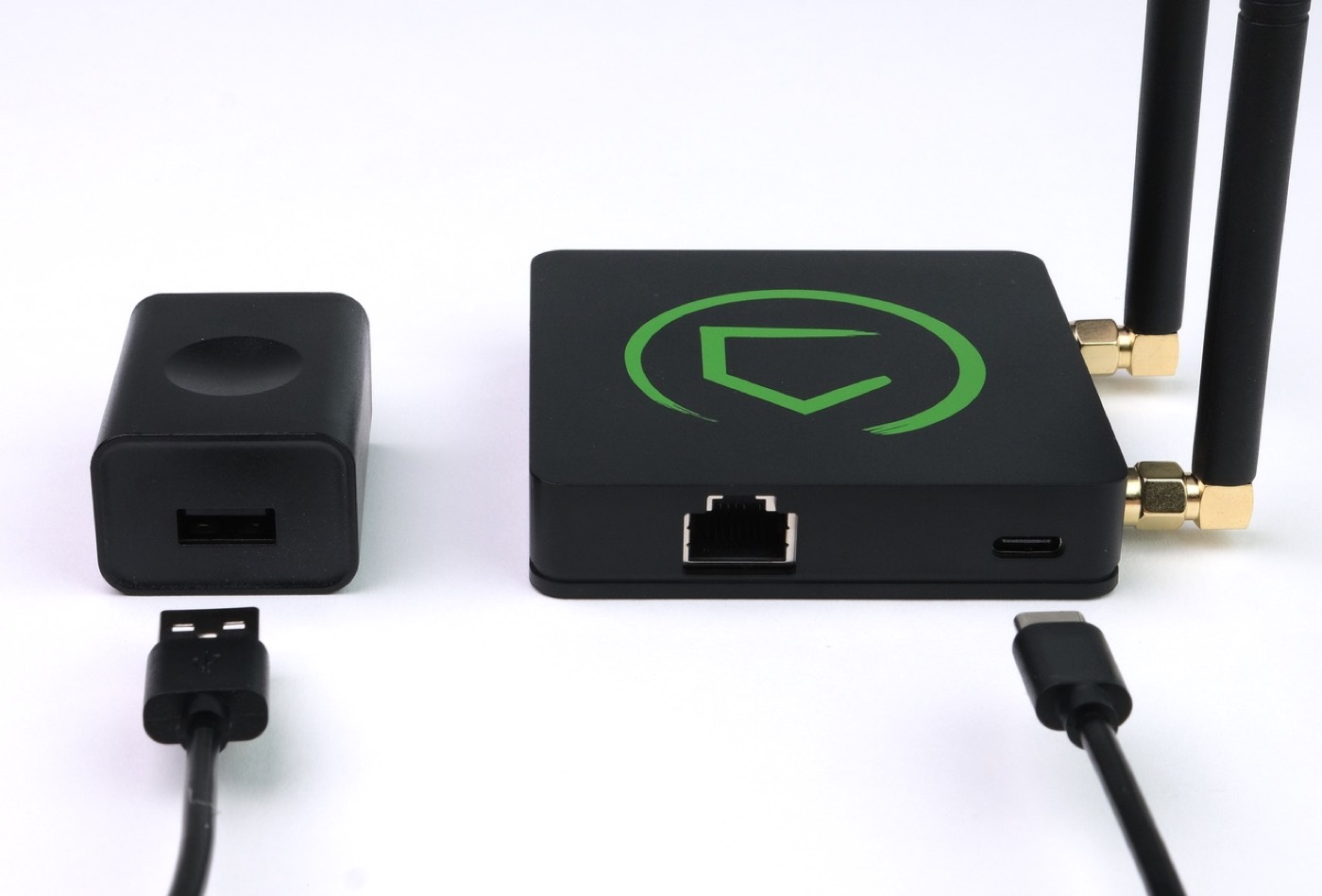
Important Do not plug the power supply into a power outlet yet.
USB cable between the hub USB-C port and the power adapter, with the adapter still unplugged
Connect USB power, but leave the adapter unplugged from the wall
4

Connect your hub to your network

Choose how you want to connect your Hubitat Elevation hub to your home network.
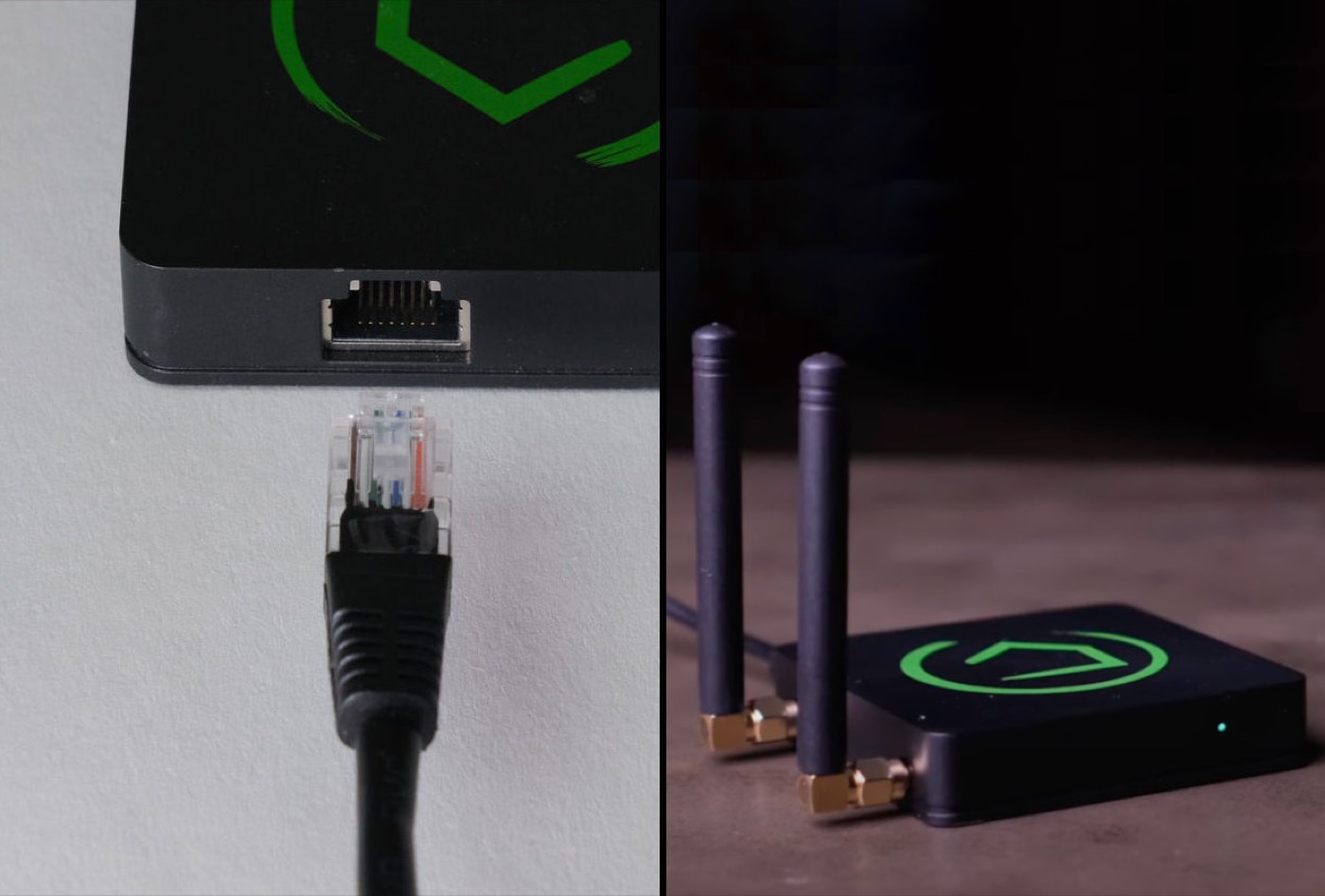
Ethernet cable next to the hub port, and a Hubitat hub connected over Wi-Fi with a green LED
Ethernet (left) is recommended. Wi-Fi (right) is also supported.
5

Connect the Ethernet cable

Connect your Hubitat Elevation hub to your router using the included Ethernet cable. Make sure both ends are securely connected.
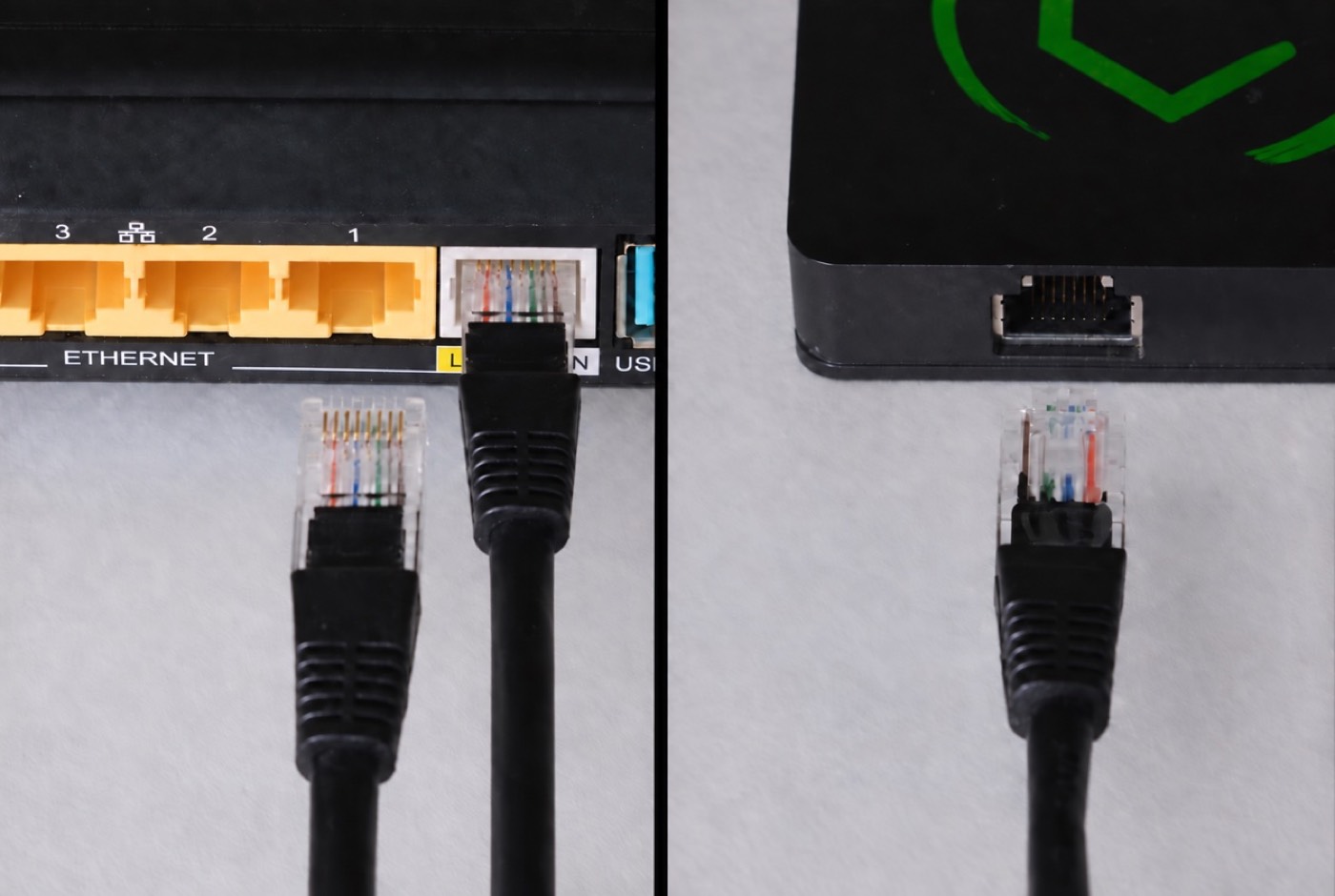
Ethernet cable plugged into a router port and into the Hubitat hub
Connect the cable between your router and the hub
6

Power up your hub

Plug the power supply into a power outlet and wait for your hub to start up.

The LED indicator will turn blue and then green. Startup usually takes about 3 minutes.
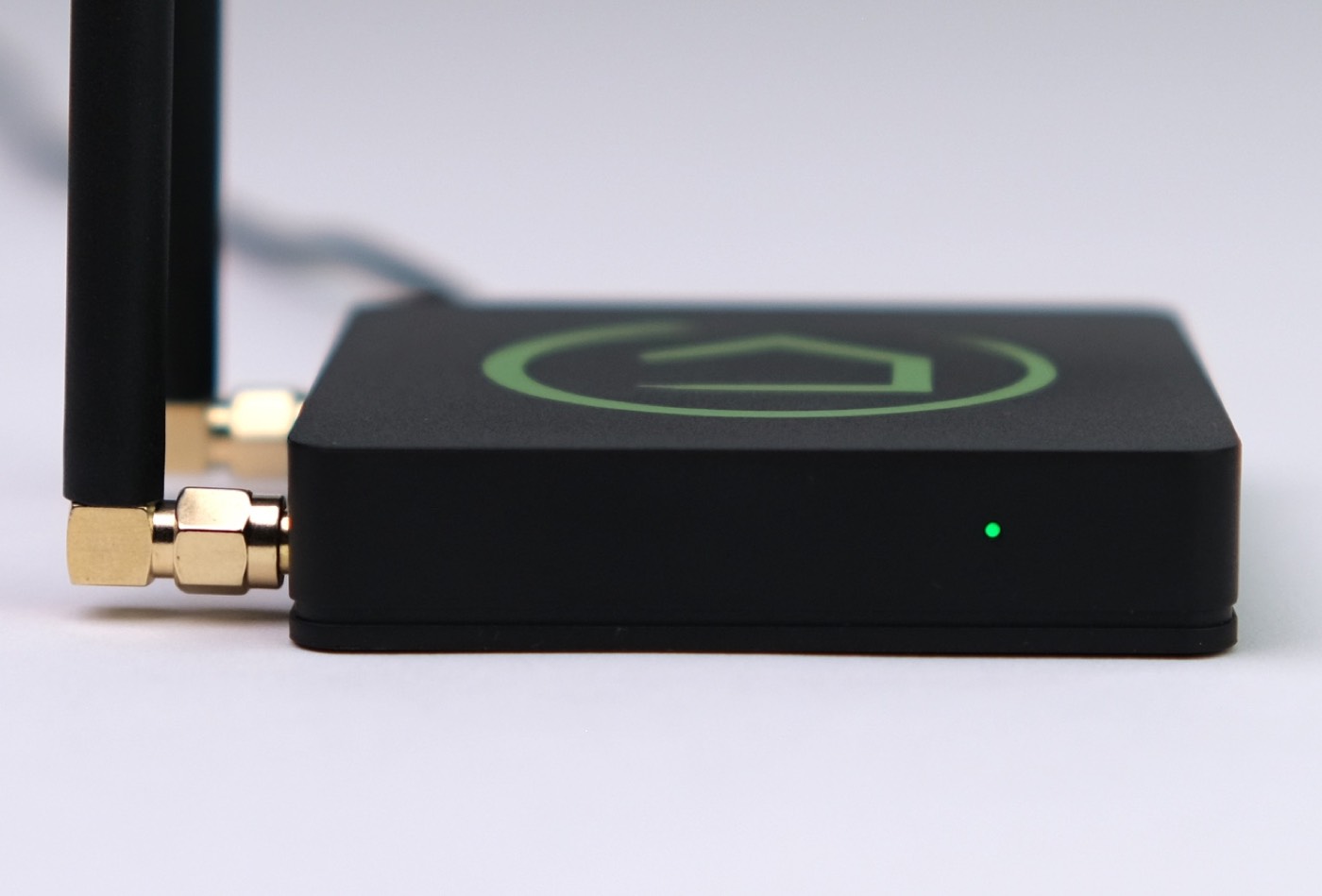
Need help? If the LED does not turn on or remains blue, visit the Hubitat Support website or check the Frequently Asked Questions.
Hubitat Elevation hub powered on with a green LED indicator
A green LED means the hub has finished starting up

Wi-Fi Setup

Complete steps 7–9 only if you selected Wi-Fi.

Skip this section if you connected with Ethernet. Continue to Hub Discovery below.

7

Open your device’s Wi-Fi settings

Open the Wi-Fi or network settings on your phone or tablet. The exact steps may vary depending on your device.
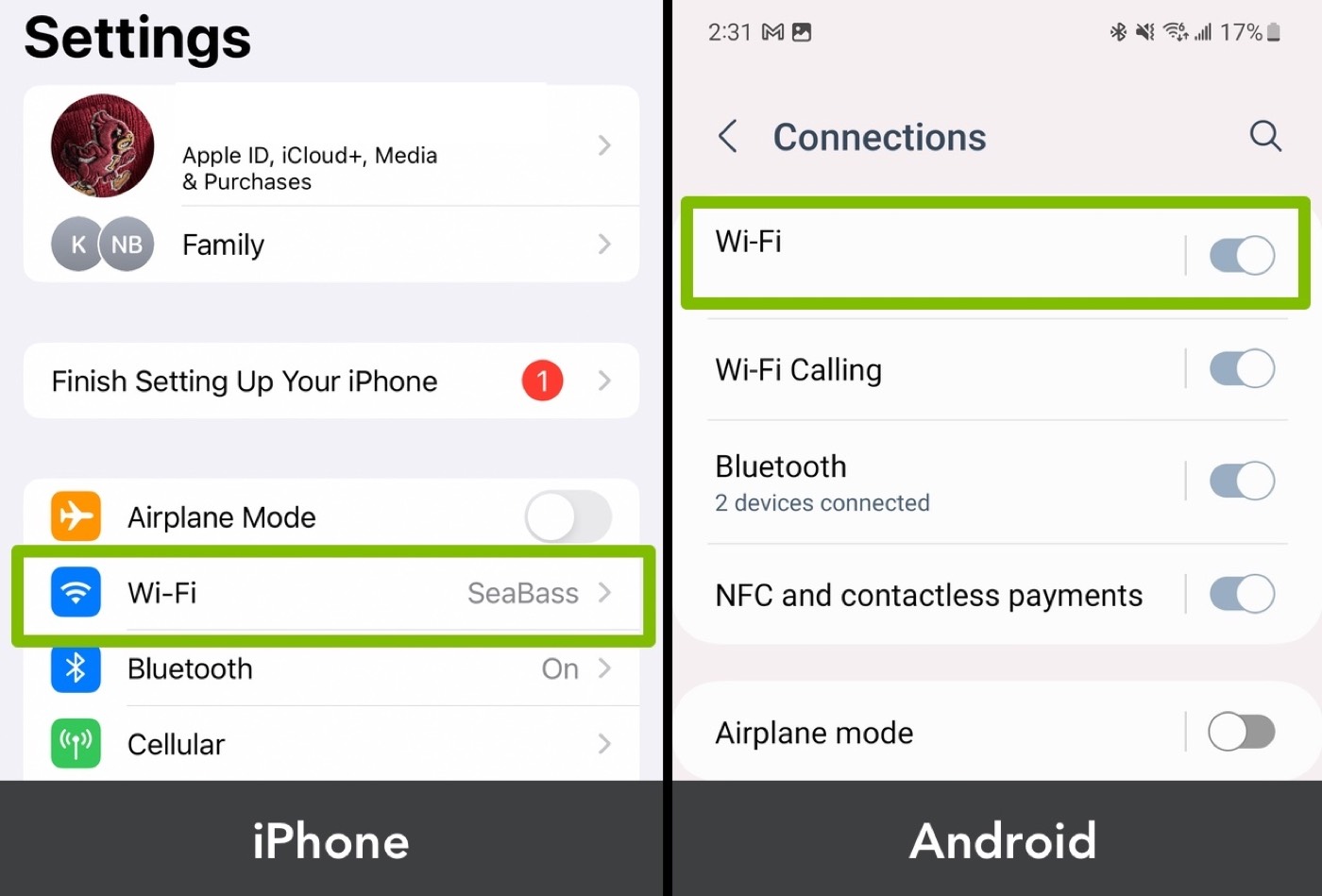
iPhone Settings and Android Connections screens with Wi-Fi highlighted
Open Wi-Fi settings on iPhone or Android
8

Connect to the hub’s Wi-Fi network

In your phone or tablet’s Wi-Fi settings, find and connect to the MyNewHubitat wireless network.

Once connected, return to the setup process.
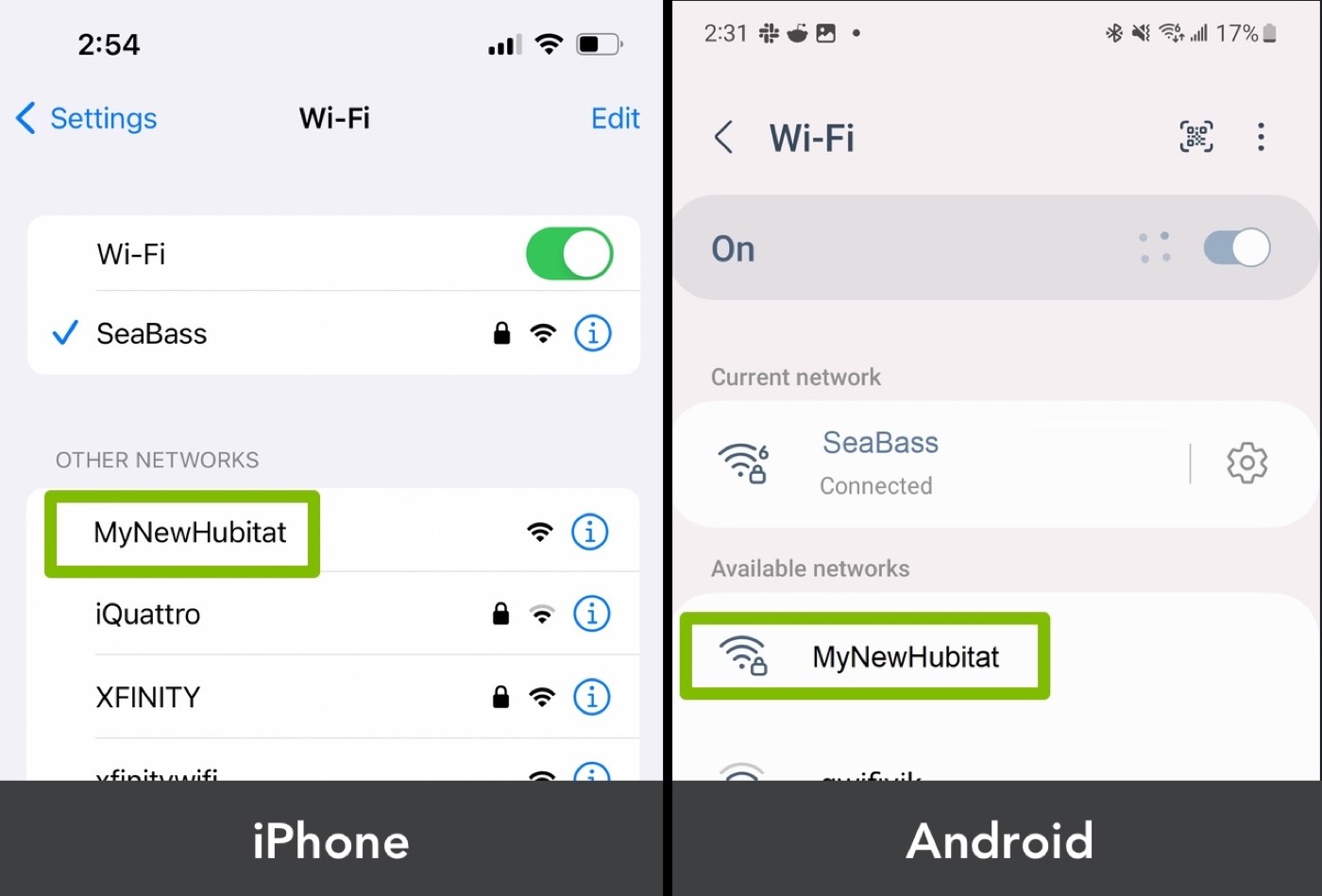
iPhone and Android Wi-Fi lists with MyNewHubitat highlighted
Select the MyNewHubitat network
9

Connect your hub to your home Wi-Fi

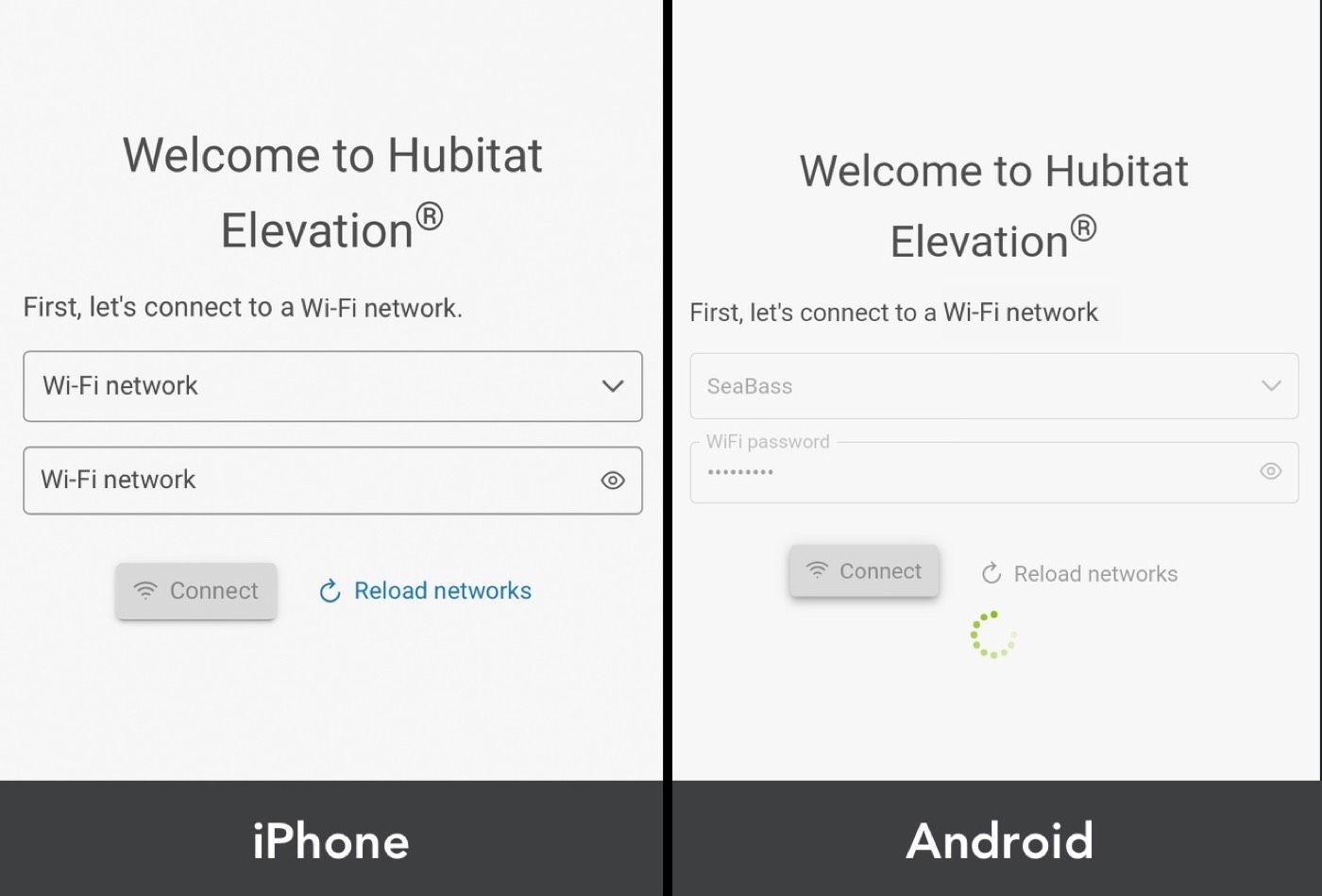
A connection portal should open automatically. This may take up to one minute.

If the portal does not open, visit http://172.16.1.1/ in your device’s browser.

On the portal screen:

  1. Wi-Fi Network Name: Select your home Wi-Fi network from the dropdown list. If no dropdown appears, enter the network name exactly as it appears in your device’s Wi-Fi settings.
  2. Wi-Fi Password: Enter the password for your home Wi-Fi network.
  3. Select Connect to connect your hub to your home Wi-Fi.

Wait for the connection confirmation. Once the process is complete, return to this setup guide.
If you see “Unable to save Wi-Fi info” Return to your device’s Wi-Fi settings and make sure you are still connected to the MyNewHubitat network. Re-enter your home Wi-Fi name and password, then submit again. If the issue persists, connect the hub to your router using an Ethernet cable.
Hubitat Wi-Fi portal on iPhone and Android with network name, password, and Connect button
Choose your home network, enter the password, then tap Connect

Hub Discovery

10

Discover your hub

You’re almost done! Select Find My Hub to search for your Hubitat Elevation hub.
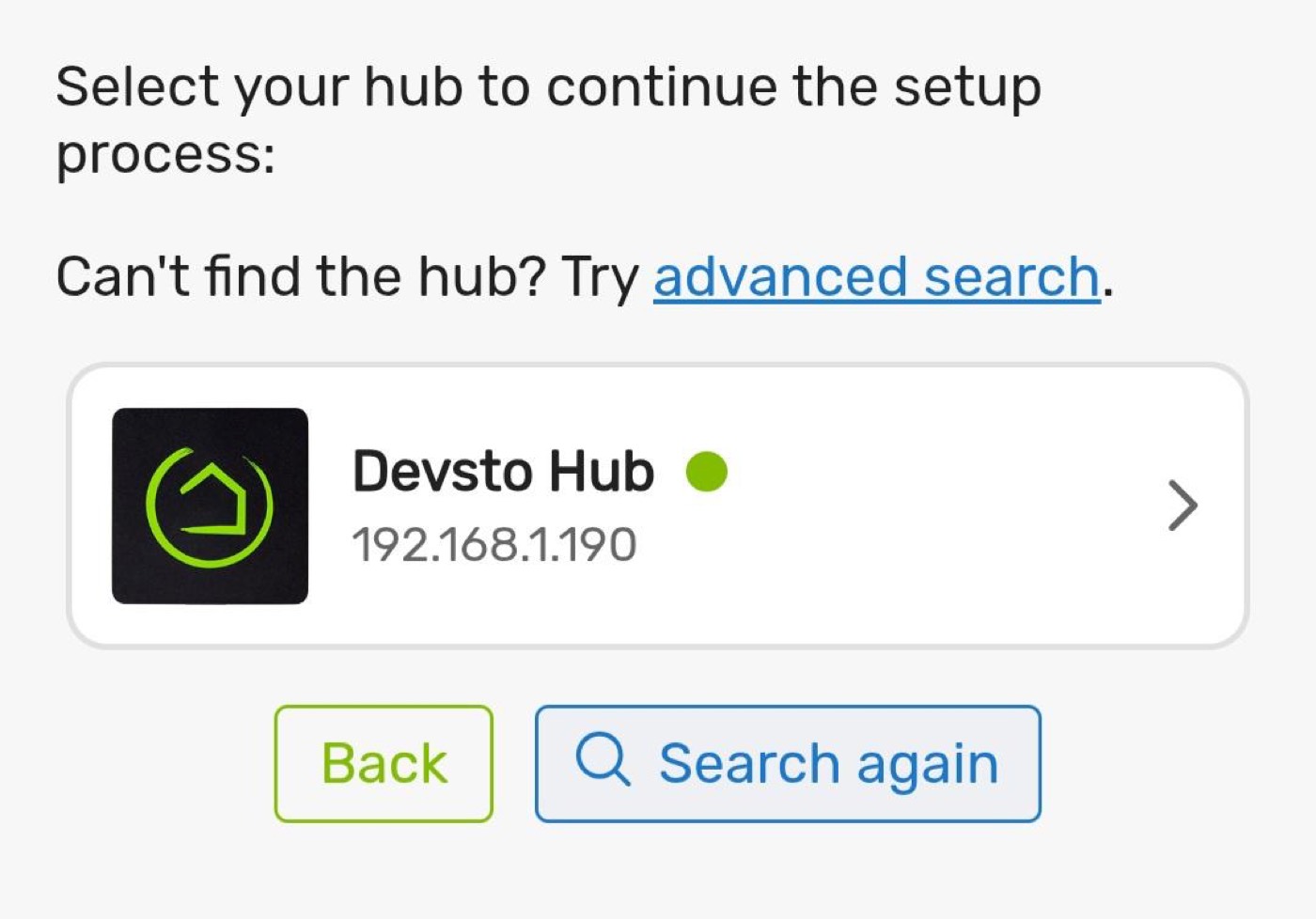
Important If you’re using a phone or tablet, make sure it is connected to your home’s Wi-Fi network.
Hub discovery results showing a Hubitat hub ready to select
When your hub appears, select it to continue
11

Select your hub and finish setup

When your hub appears in the discovery results, select it to continue.

Wait for the Update Successful confirmation, then tap Continue.

Your Hubitat Elevation dashboard will open, and your hub will be ready to use.
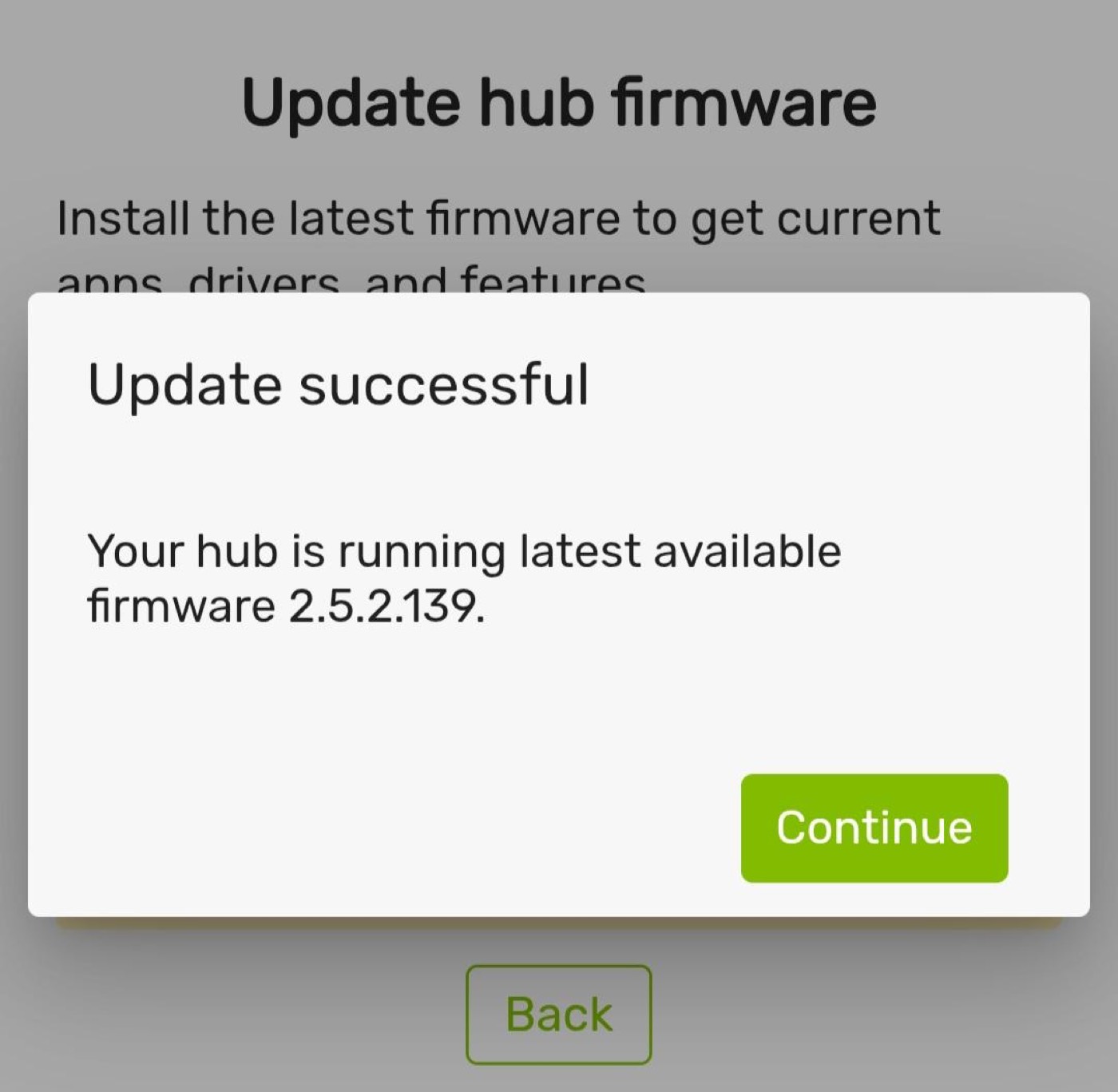
Update successful dialog with Continue button
Tap Continue after the firmware update succeeds
Hub ready Your Hubitat Elevation hub is now set up. Continue below to add a motion sensor.
!

Troubleshooting: Wi-Fi connection failed

If the network connection fails, try connecting to the MyNewHubitat network again.

If that network no longer appears, or the connection fails a second time, reset your hub:
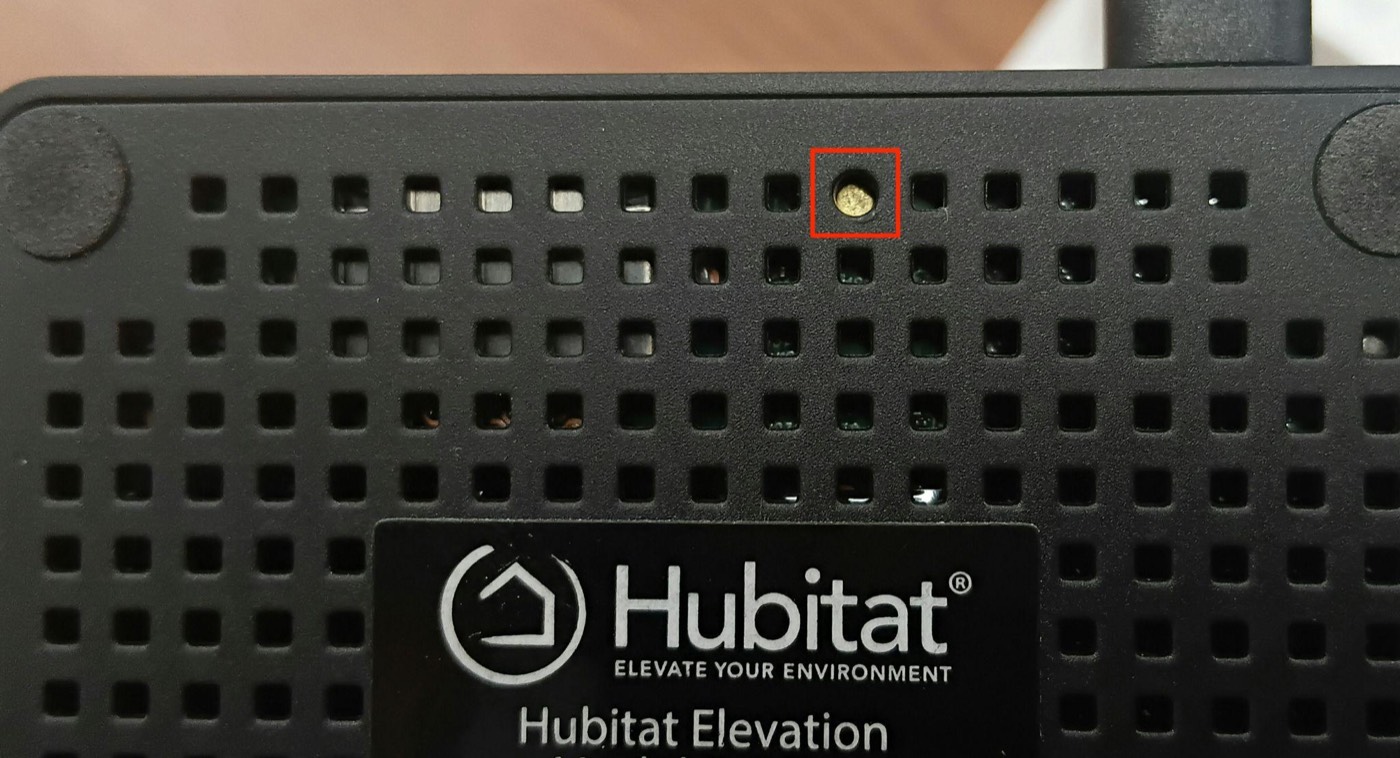
  1. Press and hold the reset button on the hub for 7 seconds. The red box in the image highlights the small circular reset button on the underside of the hub.
  2. Release the button. The LED will blink blue three times, and the hub will begin rebooting.
  3. Wait for the hub to restart. The LED will turn blue in less than a minute, then green after another 1–2 minutes.
  4. Once the LED turns green, open your device’s Wi-Fi settings and try connecting to MyNewHubitat again.
Underside of the Hubitat Elevation hub with the reset button highlighted
Reset button on the underside of the hub

Connect a New Device from the Hubitat Dashboard

After your hub is connected to your home network, follow these steps to add a new device and motion sensor.

1

Open the navigation menu

On the Hubitat dashboard home screen, open the navigation drawer highlighted in the image.
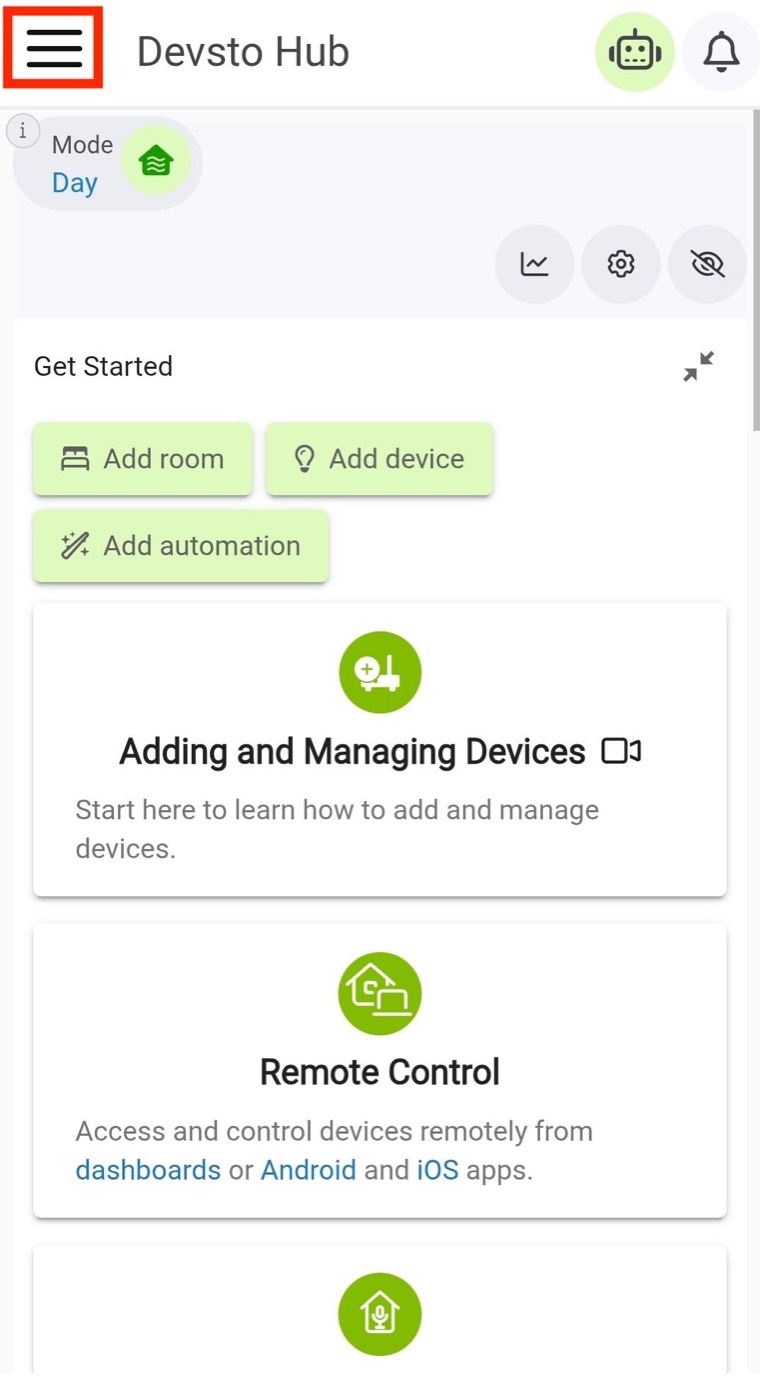
Hubitat dashboard with the menu icon highlighted
Tap the menu icon in the top-left corner
2

Open Devices

Select Devices from the navigation menu.
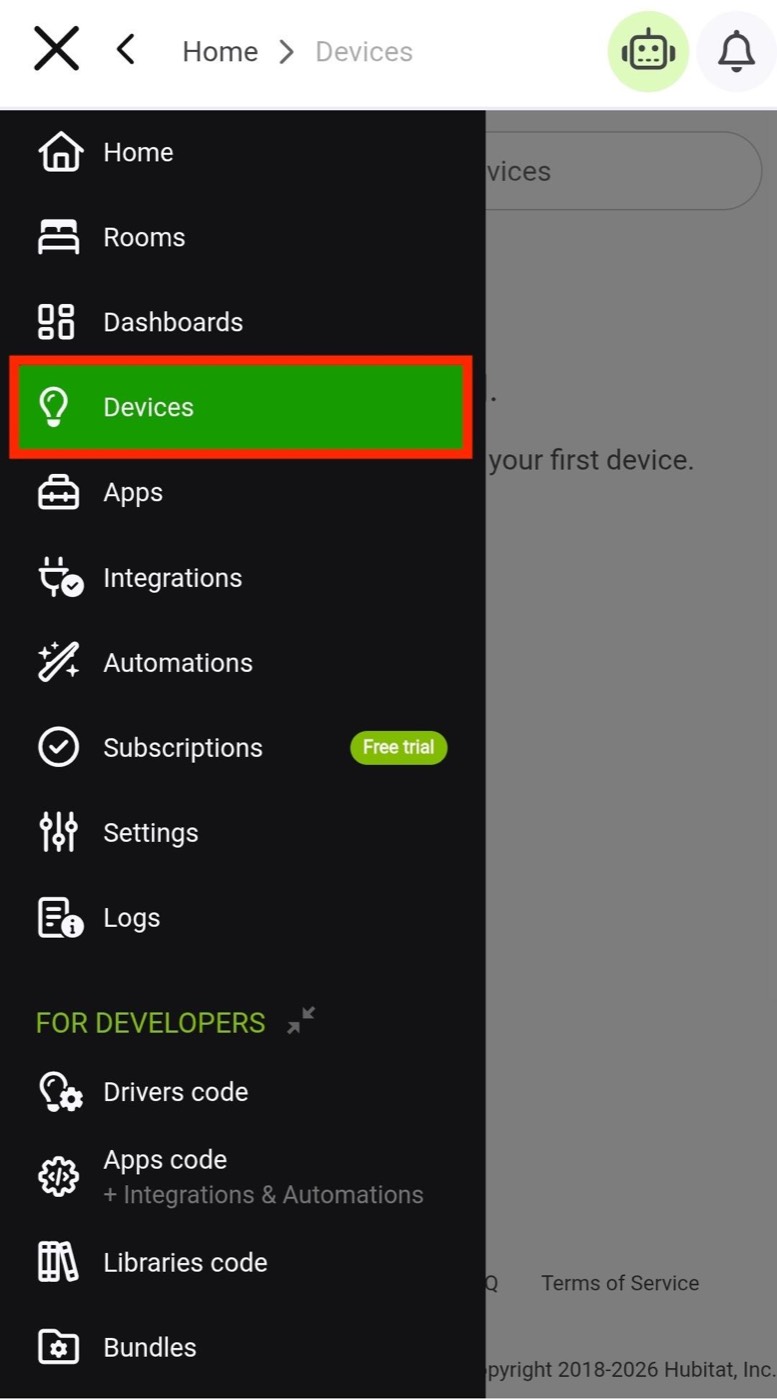
Hubitat navigation menu with Devices highlighted
Choose Devices from the side menu
3

Add a device

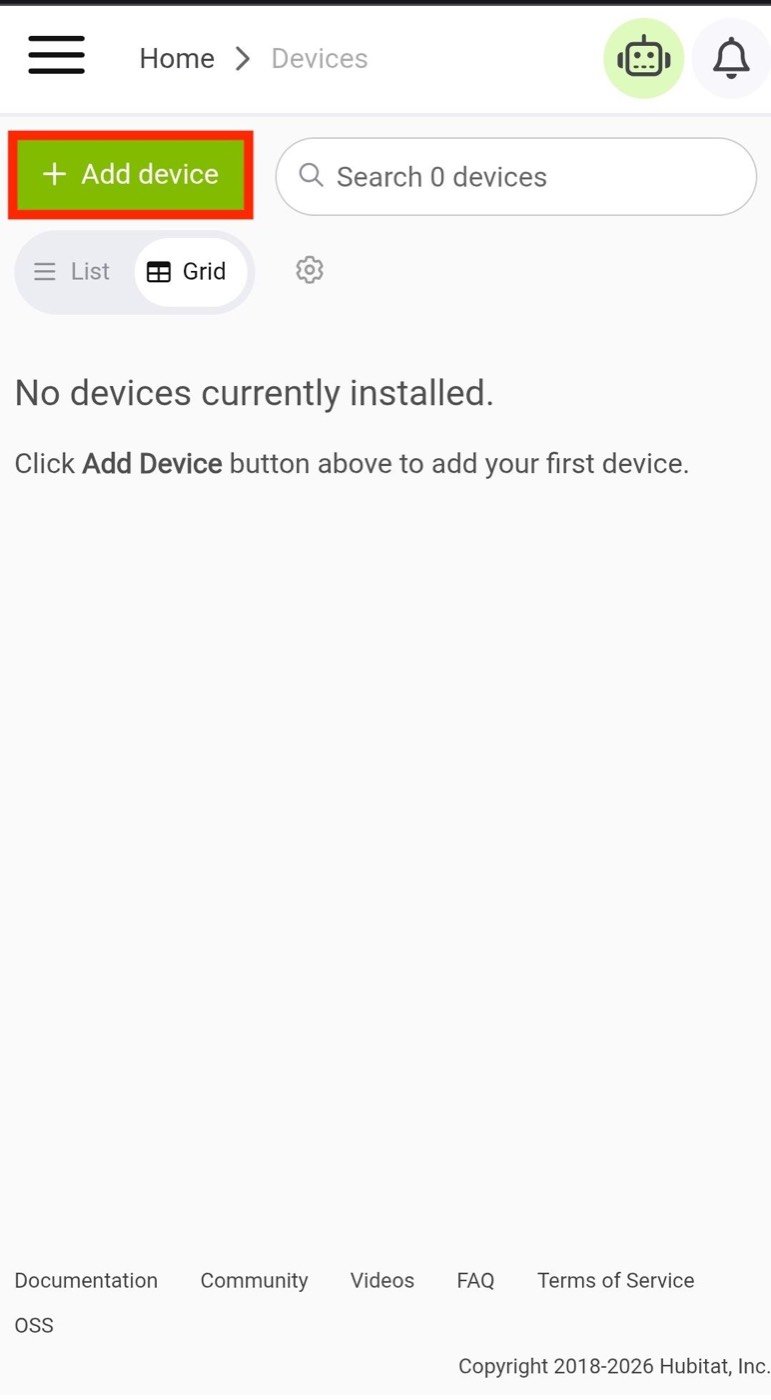
Press the Add Device button.

Hubitat Devices screen with the Add Device button
Tap Add Device to start pairing
4

Select Matter + Thread

Select Matter + Thread from the available device setup options.
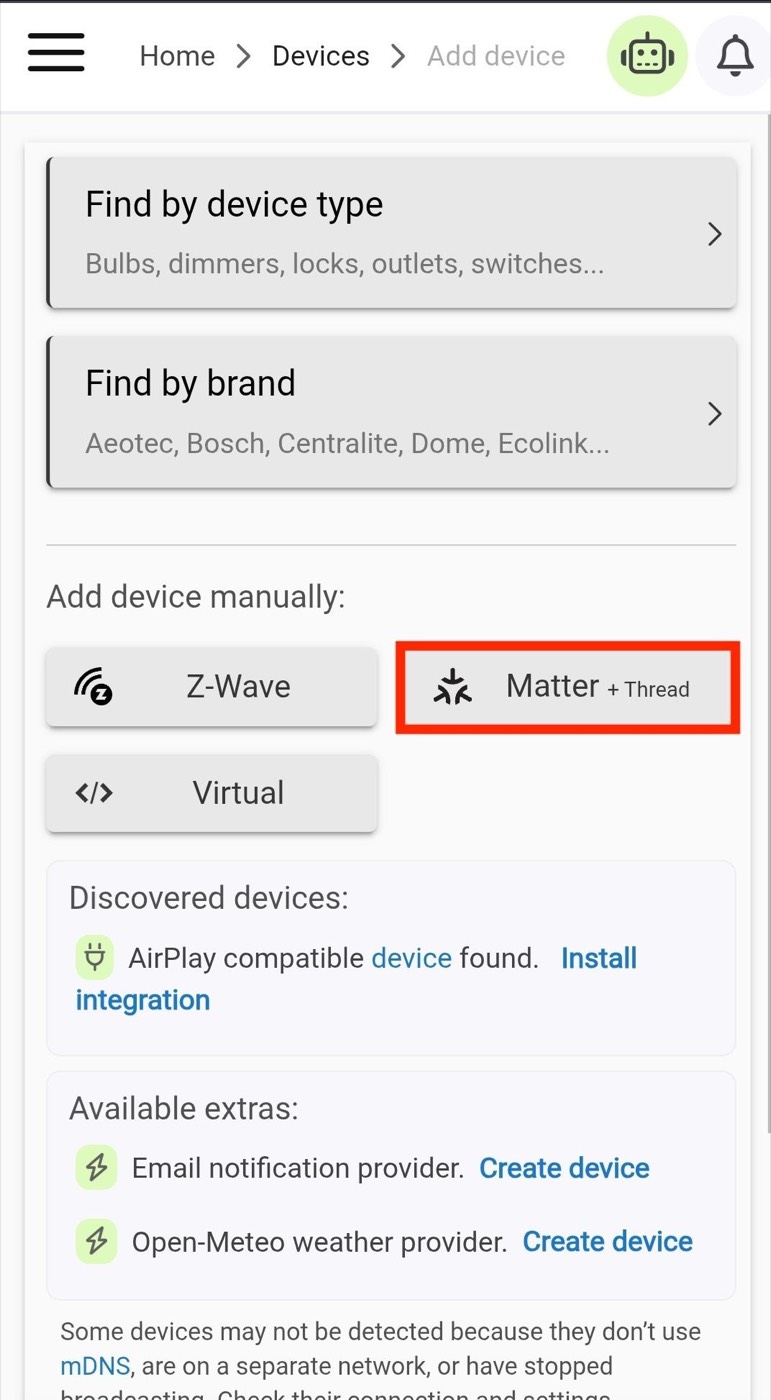
Add device screen with Matter + Thread highlighted
Choose Matter + Thread for the Eve Motion sensor
5

Scan the QR code

Press Scan QR to scan the QR code on your Eve Motion device.
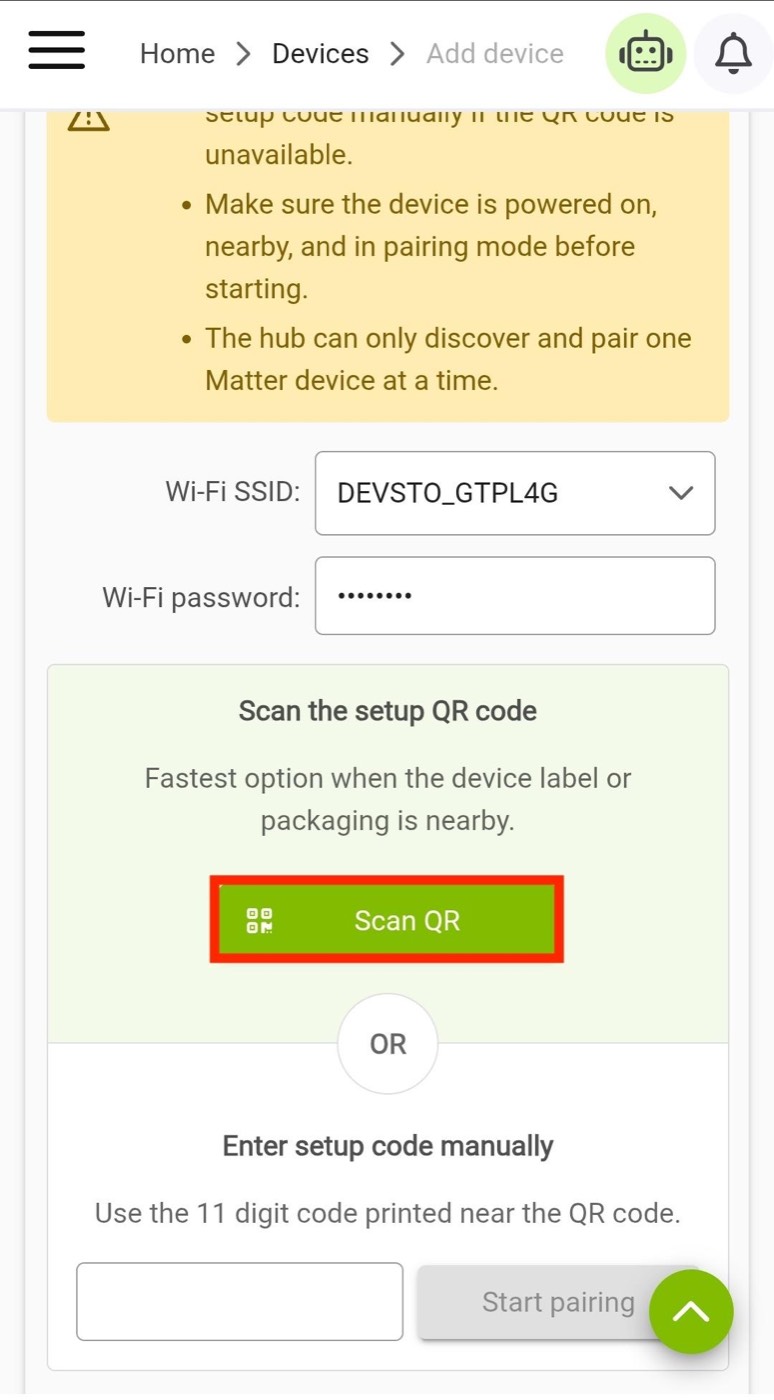
Matter setup screen with the Scan QR button
Scan the QR code on the Eve Motion sensor
6

Detect and pair the device

After a successful scan, the setup screen will display the QR code number.

Press Detect and Pair to begin pairing your device.
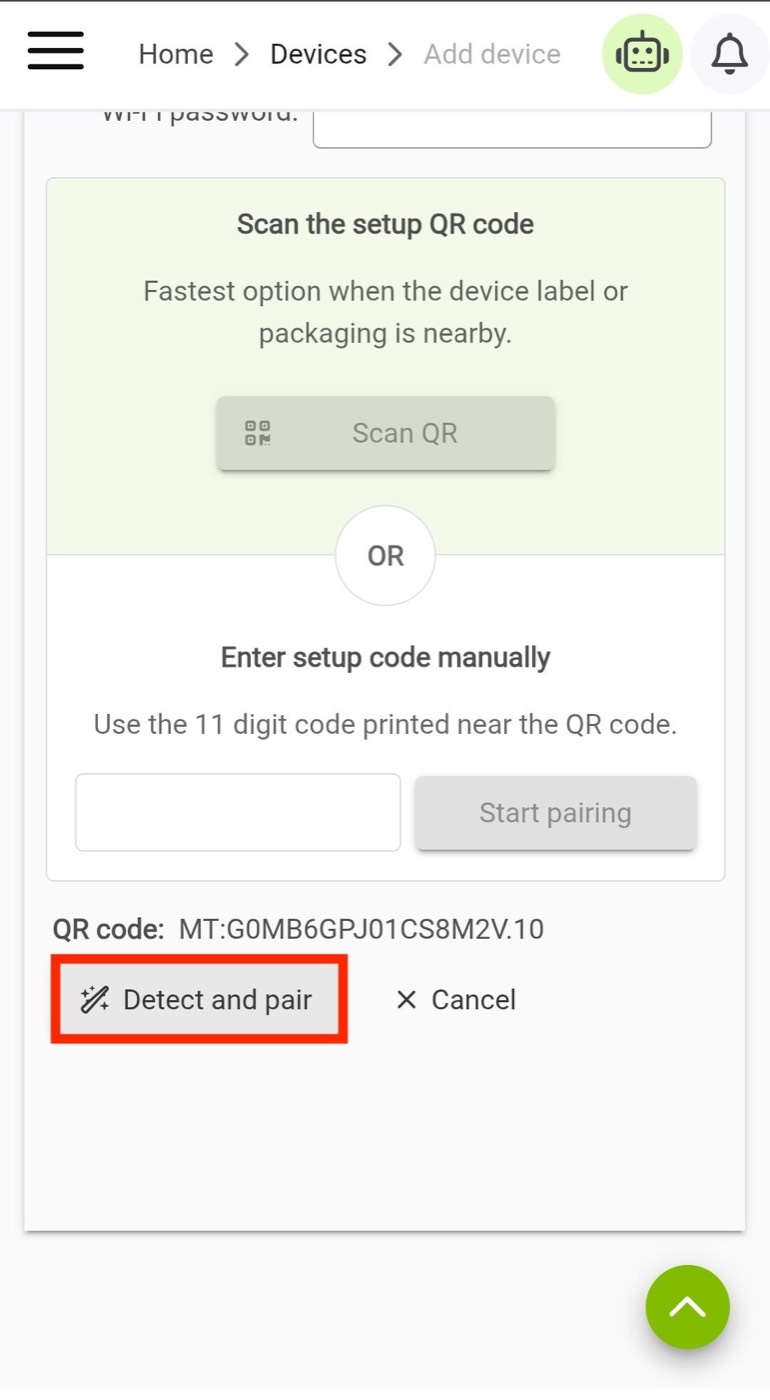
Matter setup screen showing the scanned code and Detect and Pair button
Tap Detect and Pair to continue
7

Name your device and create a room

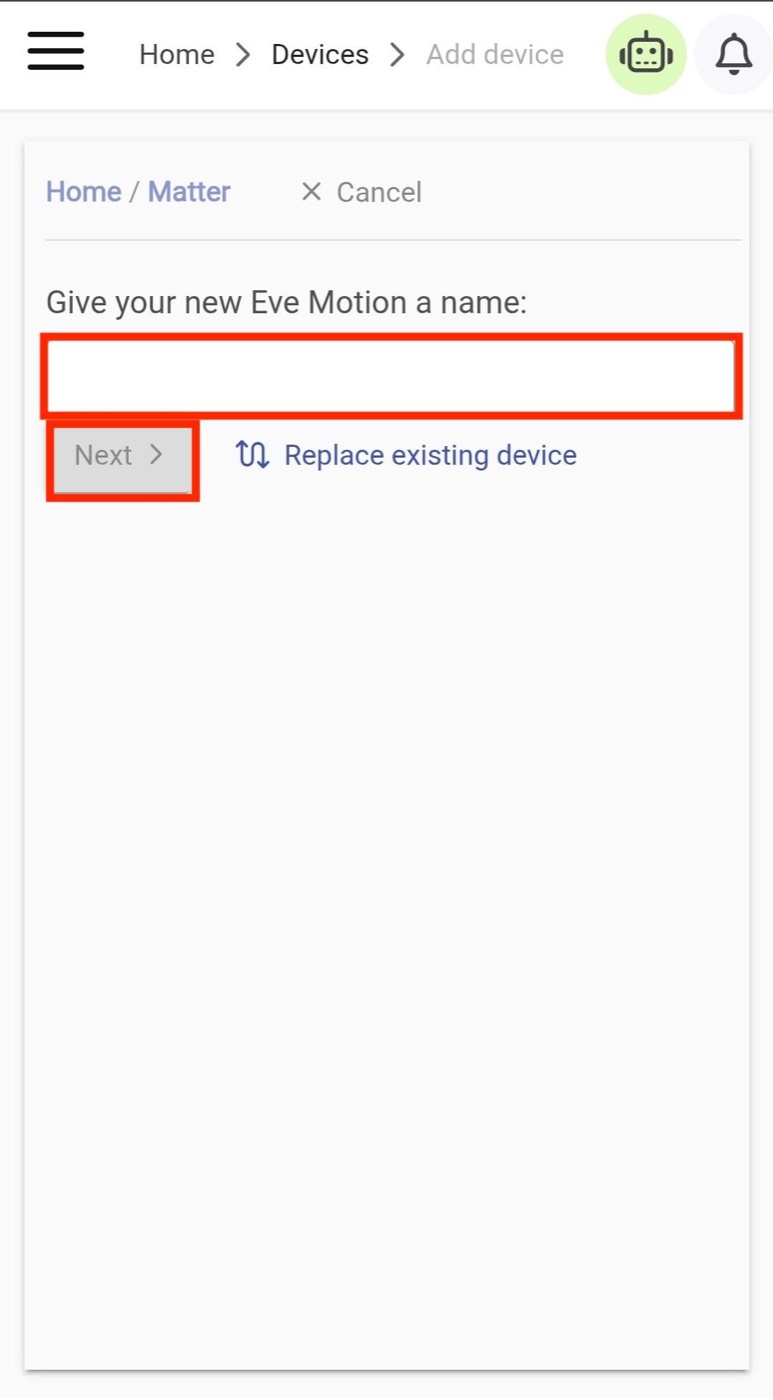
  1. Name your device: Enter a name in the Give your new Eve Motion a name field, then press Next.
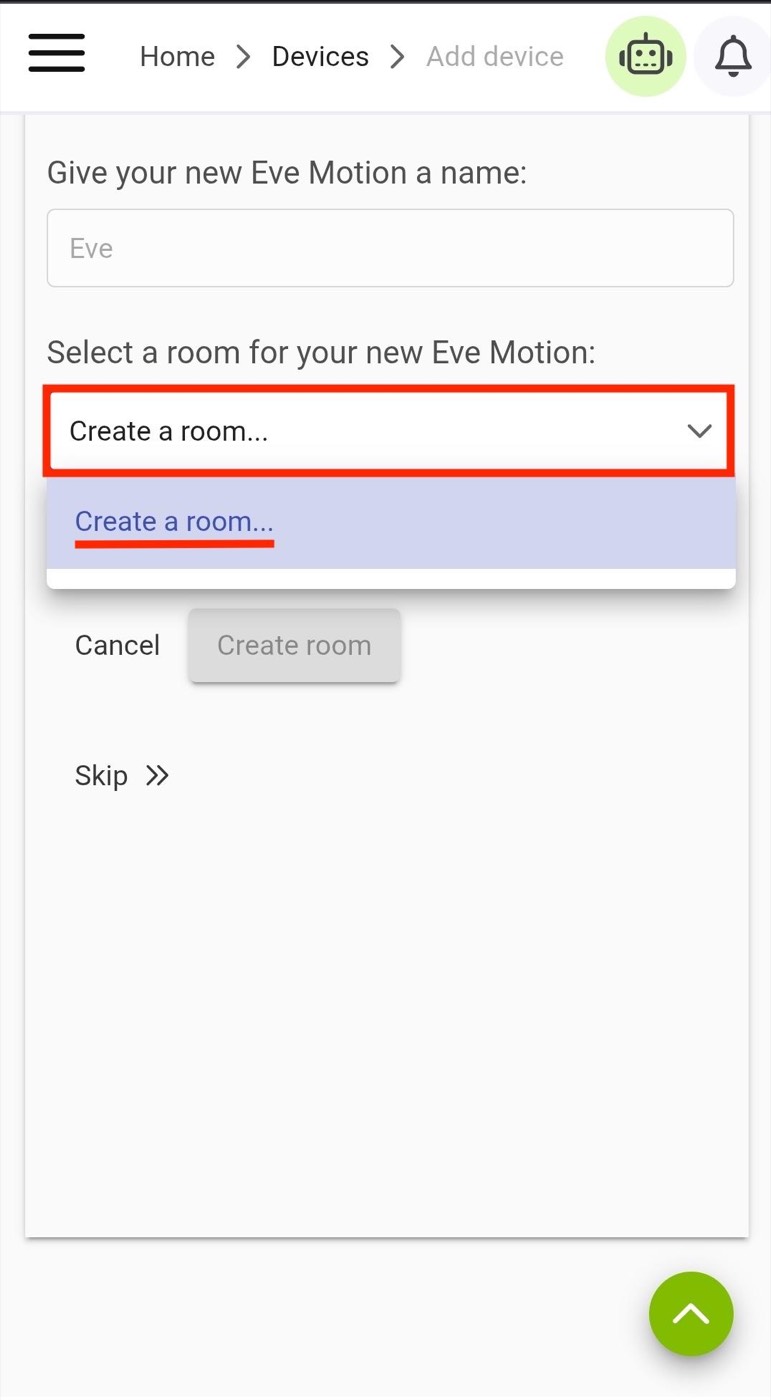
  2. Create a room: In the room field, select Create a room...
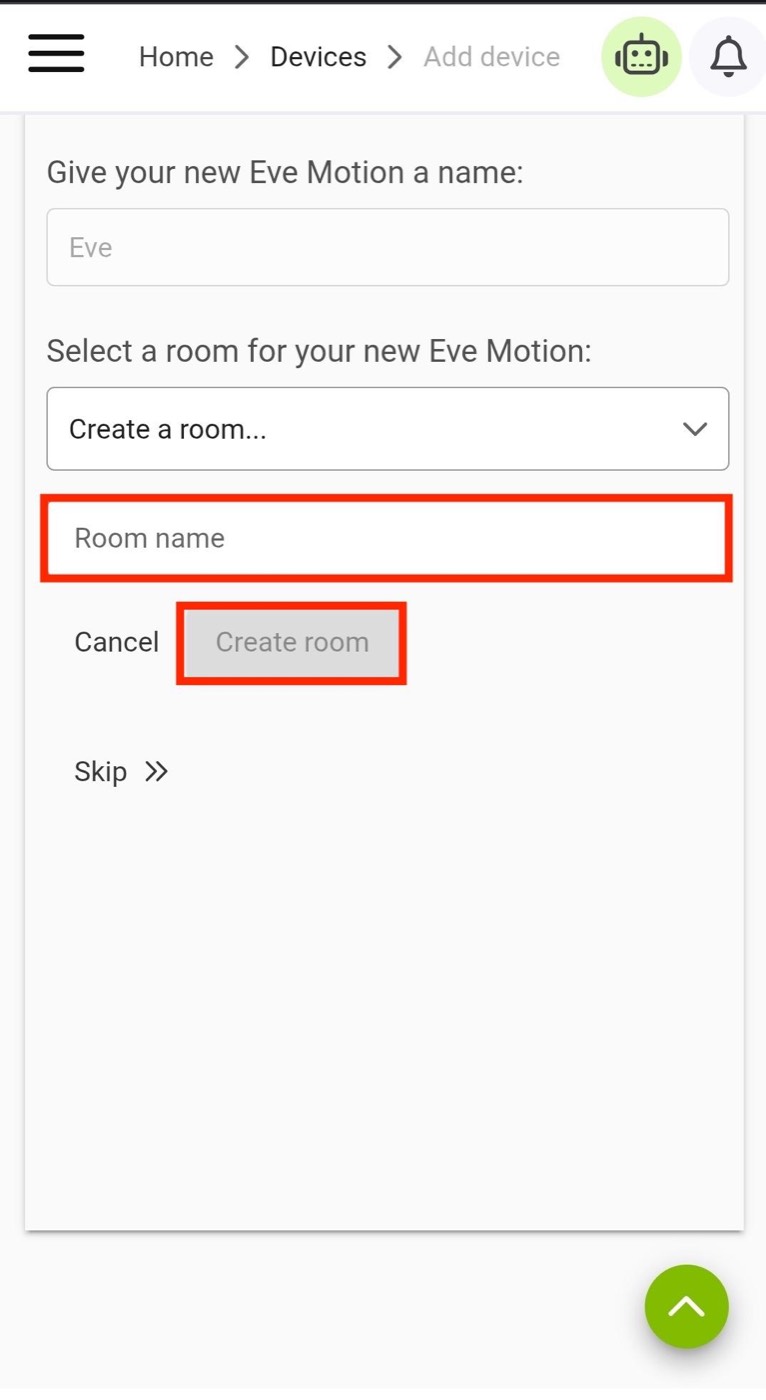
  3. Enter the room name: Type the room name, then press Create Room.
Name field for the new Eve Motion device
Name the sensor, then tap Next
Select a room dropdown with Create a room selected
Choose Create a room...
Room name field and Create Room button
Enter a name and create the room
8

View device details

Once your device has been added, the confirmation screen will display the new sensor.

Press View Device Details to see your Eve Motion device details.
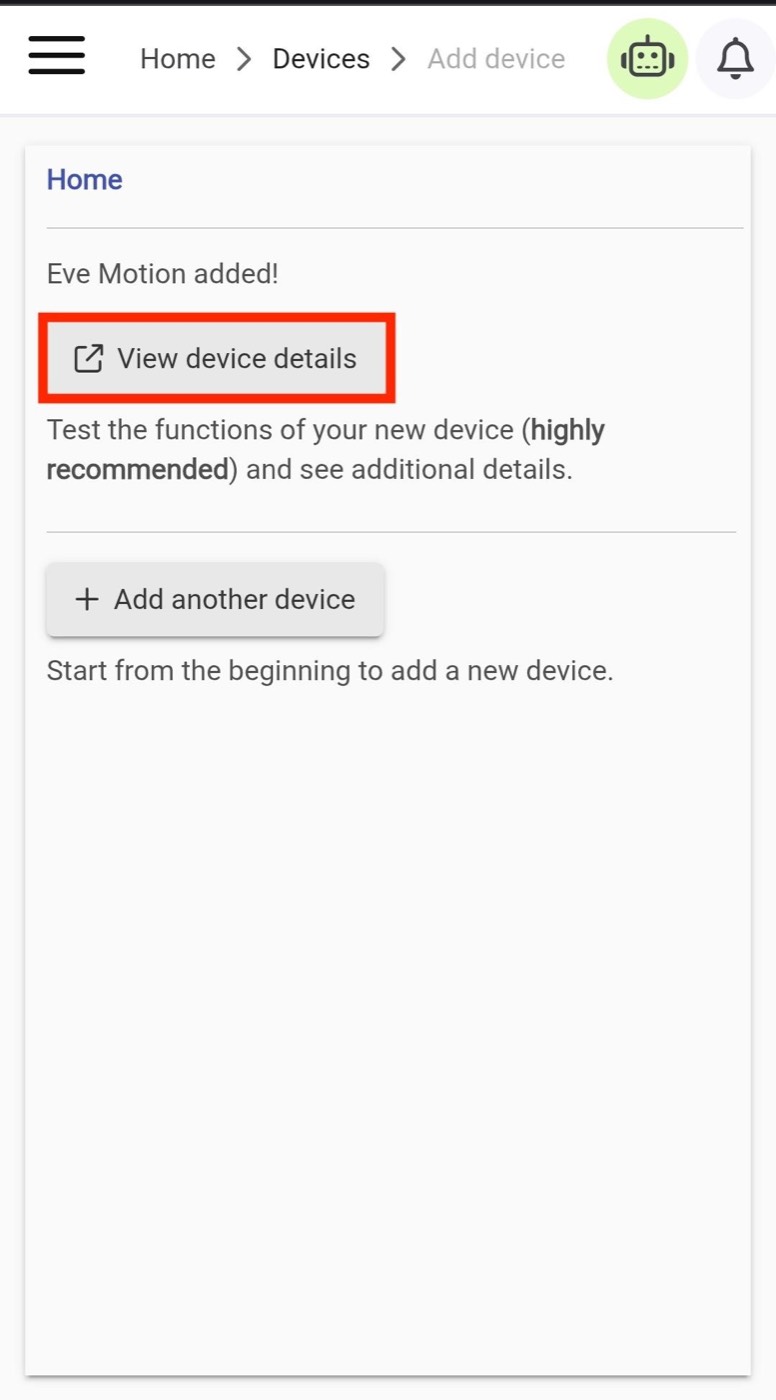
Eve Motion added confirmation with View device details highlighted
Tap View device details
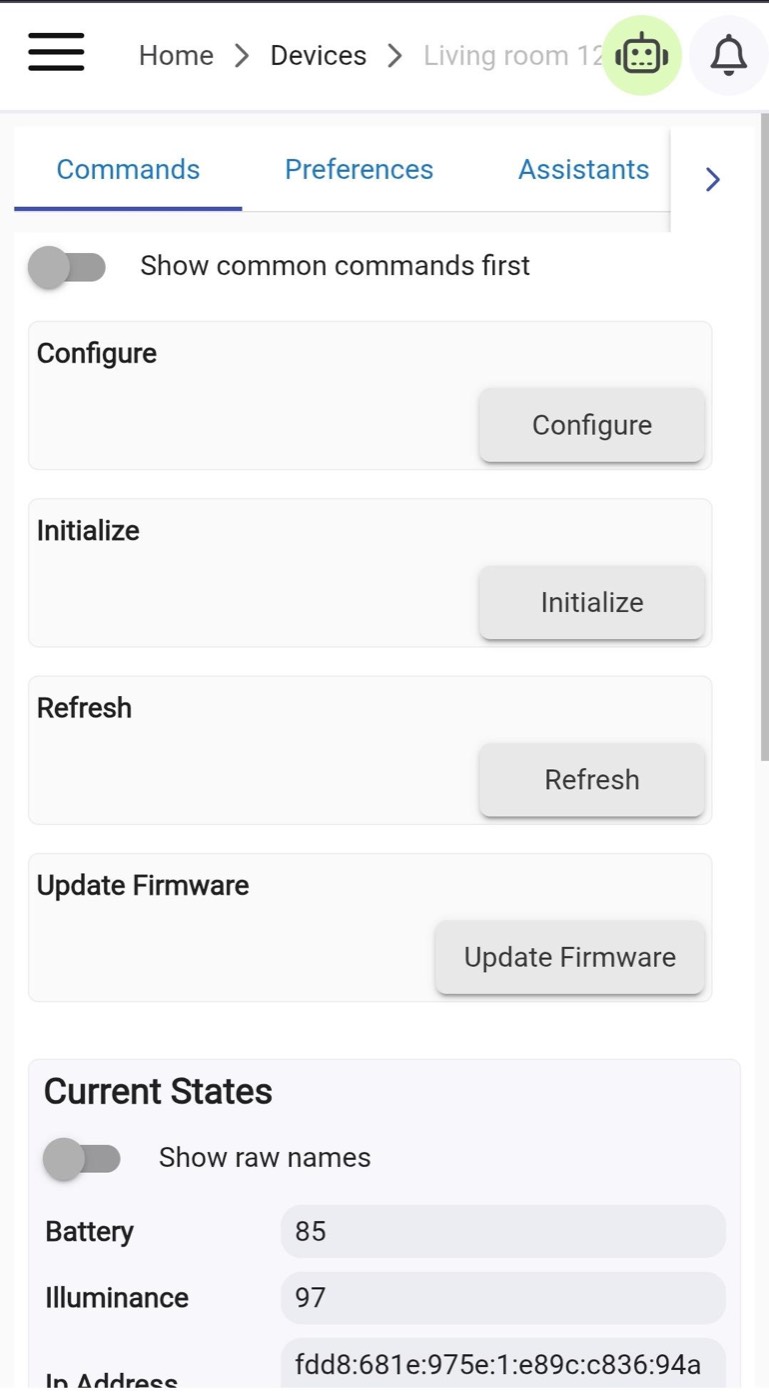
Eve Motion device details screen
Review the sensor details
Setup complete Your Eve Motion device has been added to your Hubitat Elevation hub.
9

View your added devices

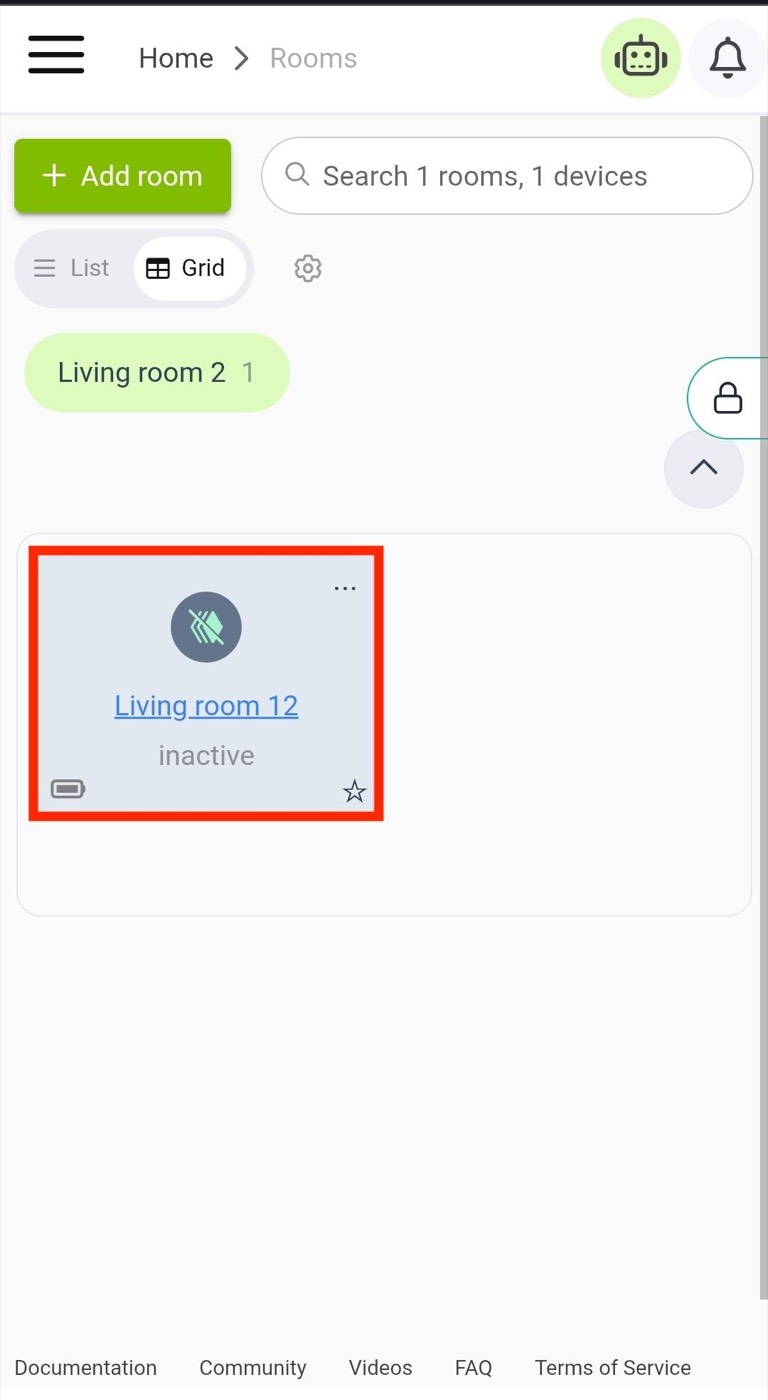
After adding your sensor, open the navigation drawer and select Rooms.

Open the room you selected during setup to view all sensors and devices in that room.
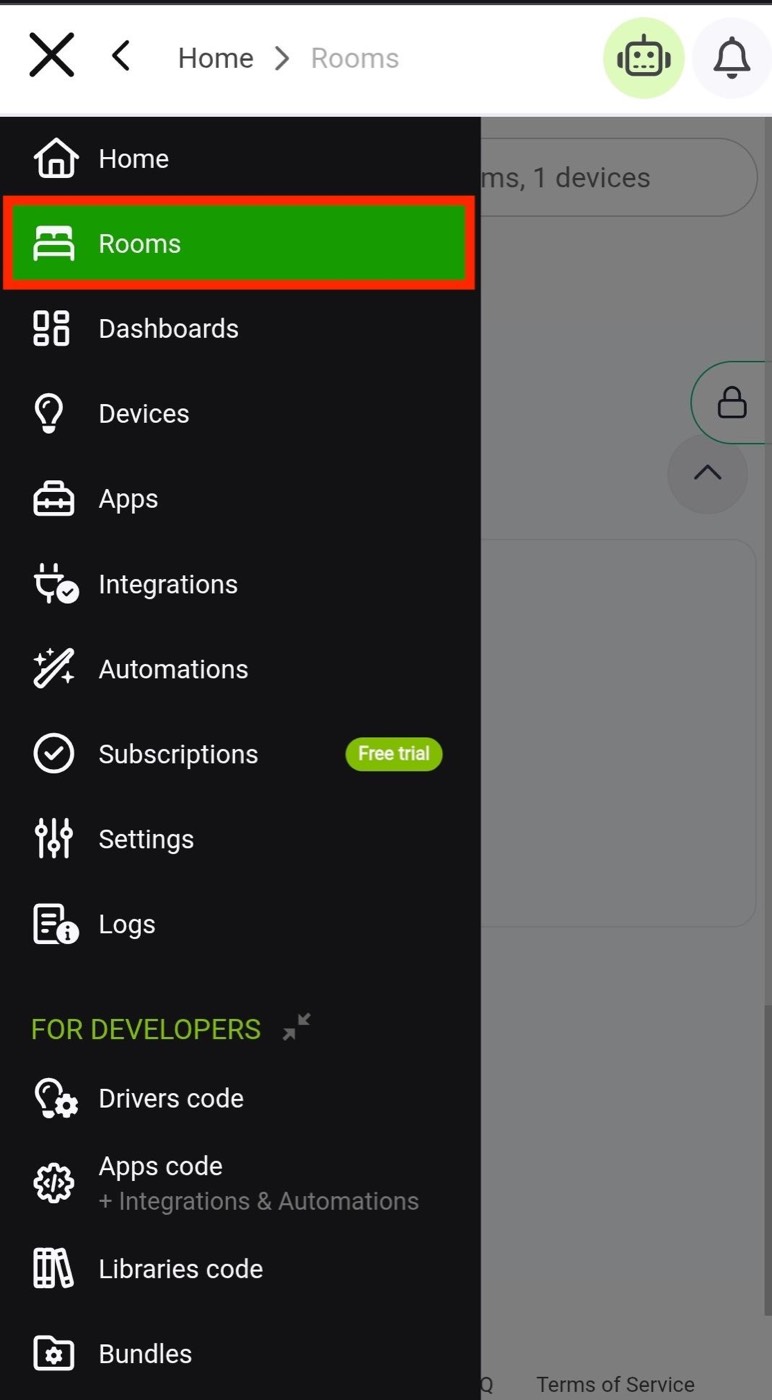
Hubitat navigation menu with Rooms highlighted
Open Rooms from the menu
Selected room showing the newly added motion sensor
Your new sensor appears in the room

Add the Maker API App in Hubitat

Follow these steps to install the Maker API app and configure it to send events from your selected devices to your URL.

1

Open Apps

Open the navigation drawer on your Hubitat dashboard and tap Apps.
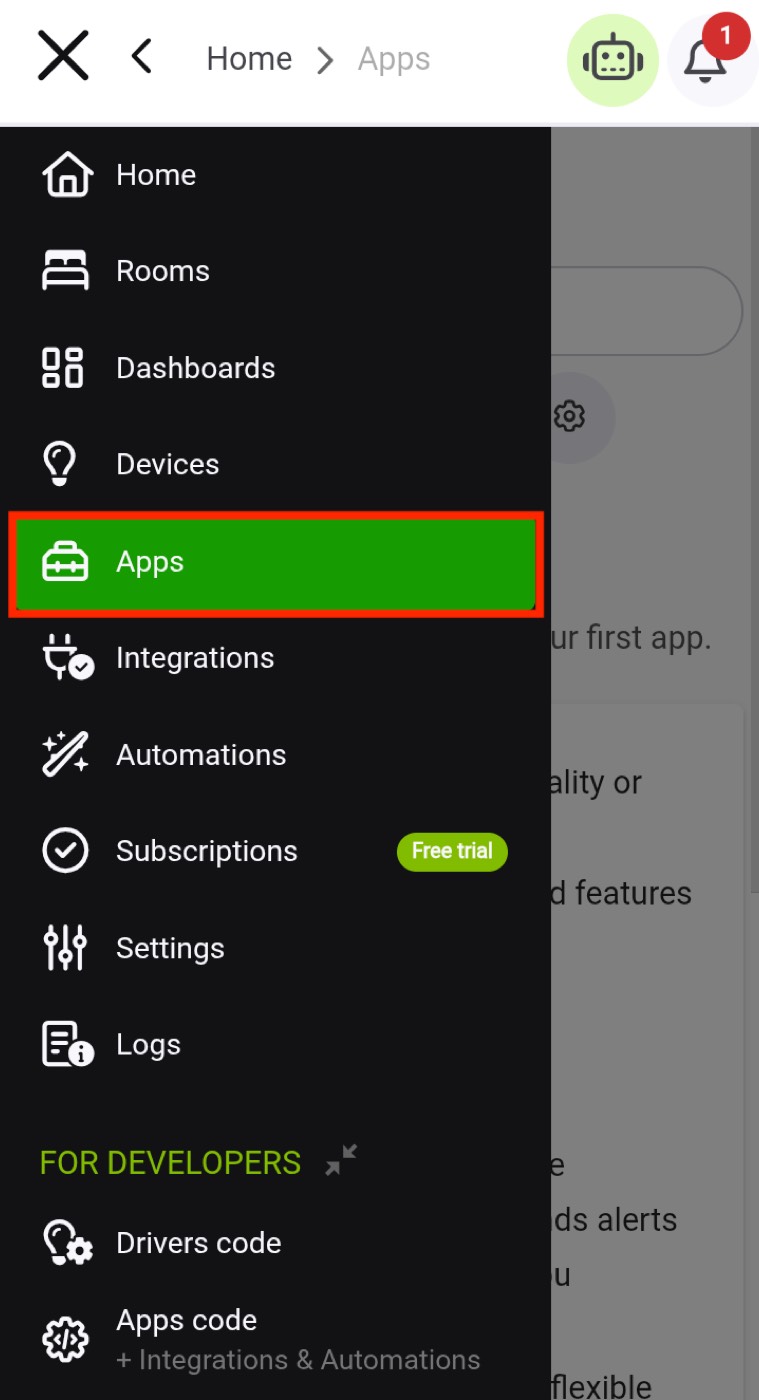
Hubitat navigation menu with Apps highlighted
Choose Apps from the side menu
2

Add an app

On the Apps screen, press the Add App button.
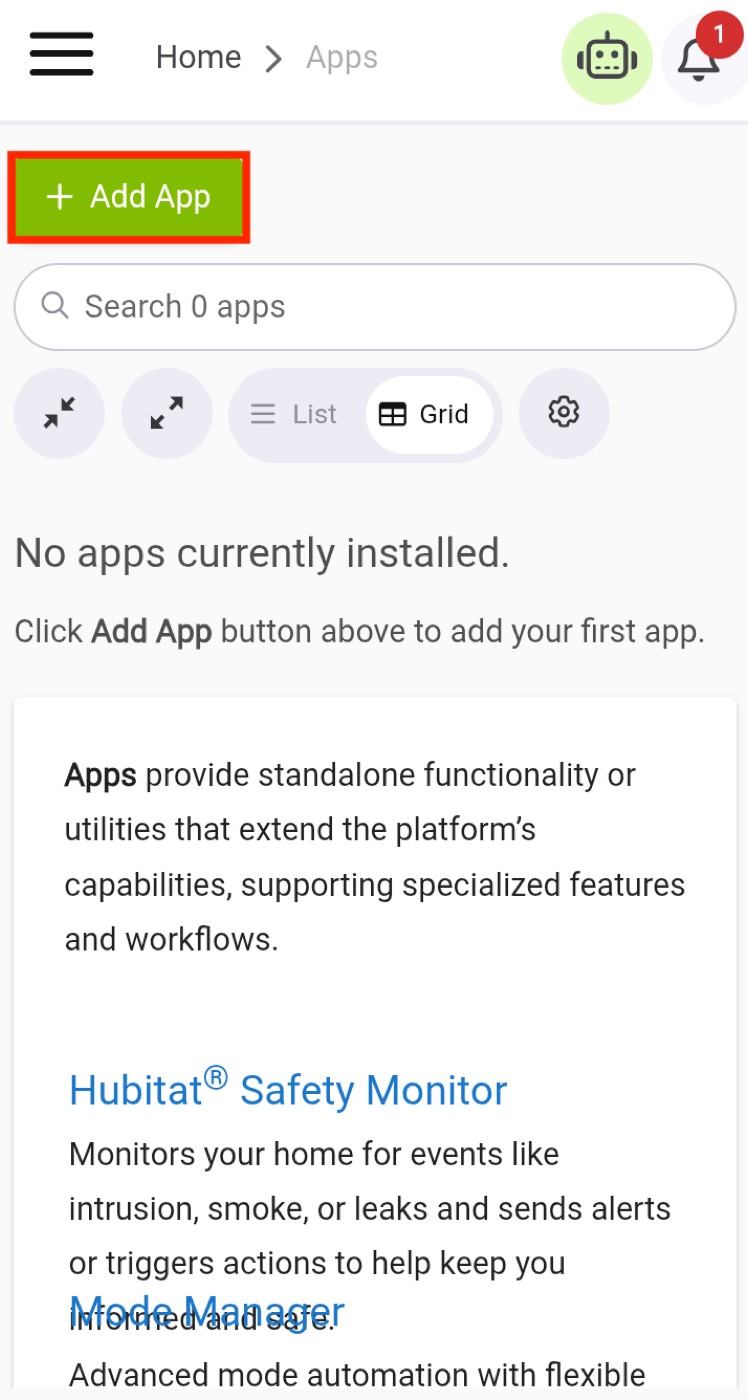
Hubitat Apps screen with Add App highlighted
Tap Add App to install Maker API
3

Search for Maker API

In the app search field, type Maker API. When Maker API appears in the search results, tap it to open the app.
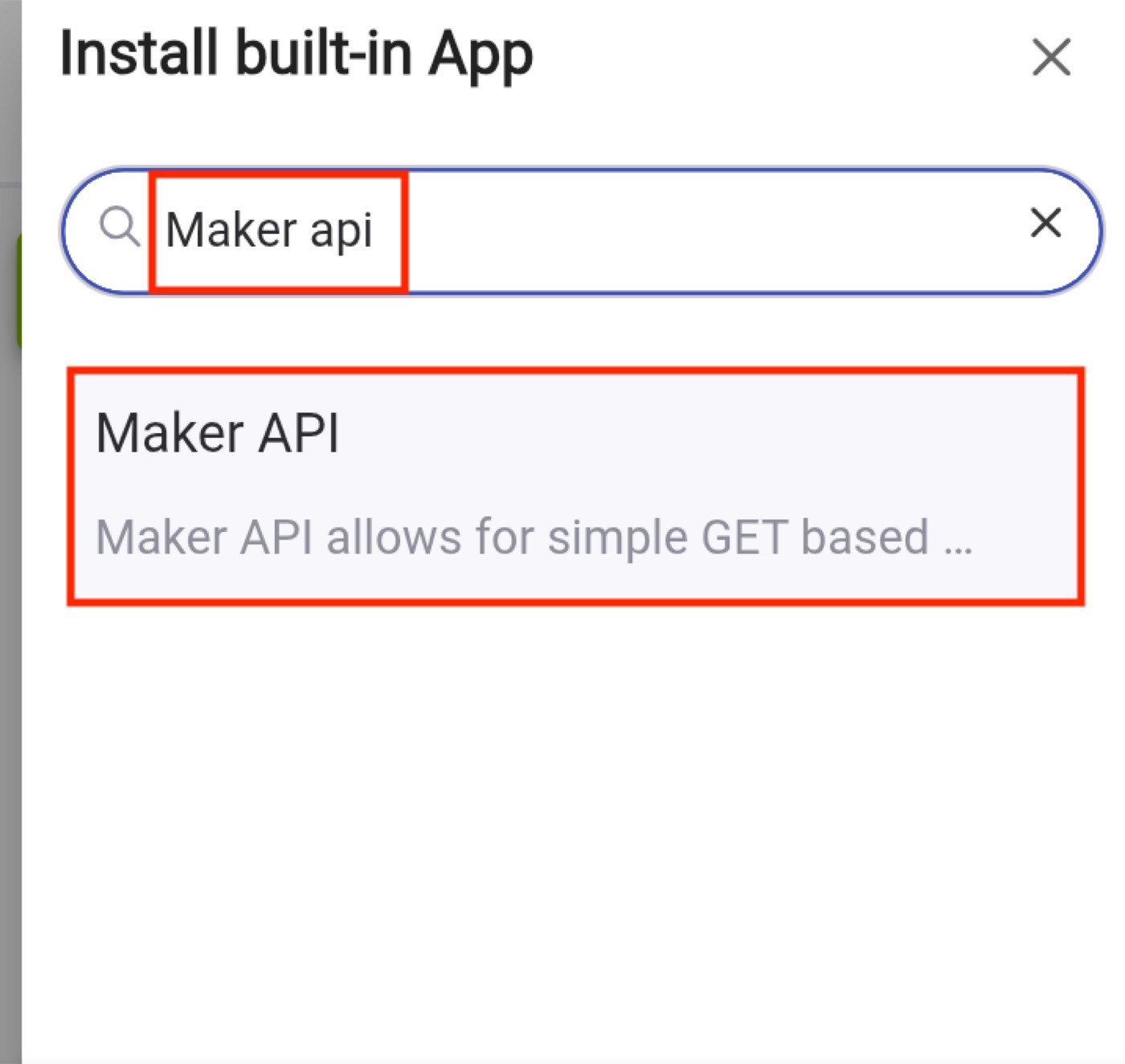
Install built-in App search showing Maker API
Search for Maker API, then tap the result
4

Select devices

Scroll down until you find Select Devices (“Click to Set”), then tap it.

A list of your added devices will appear. Select the devices you want to monitor for activity or status changes by checking their corresponding checkboxes.
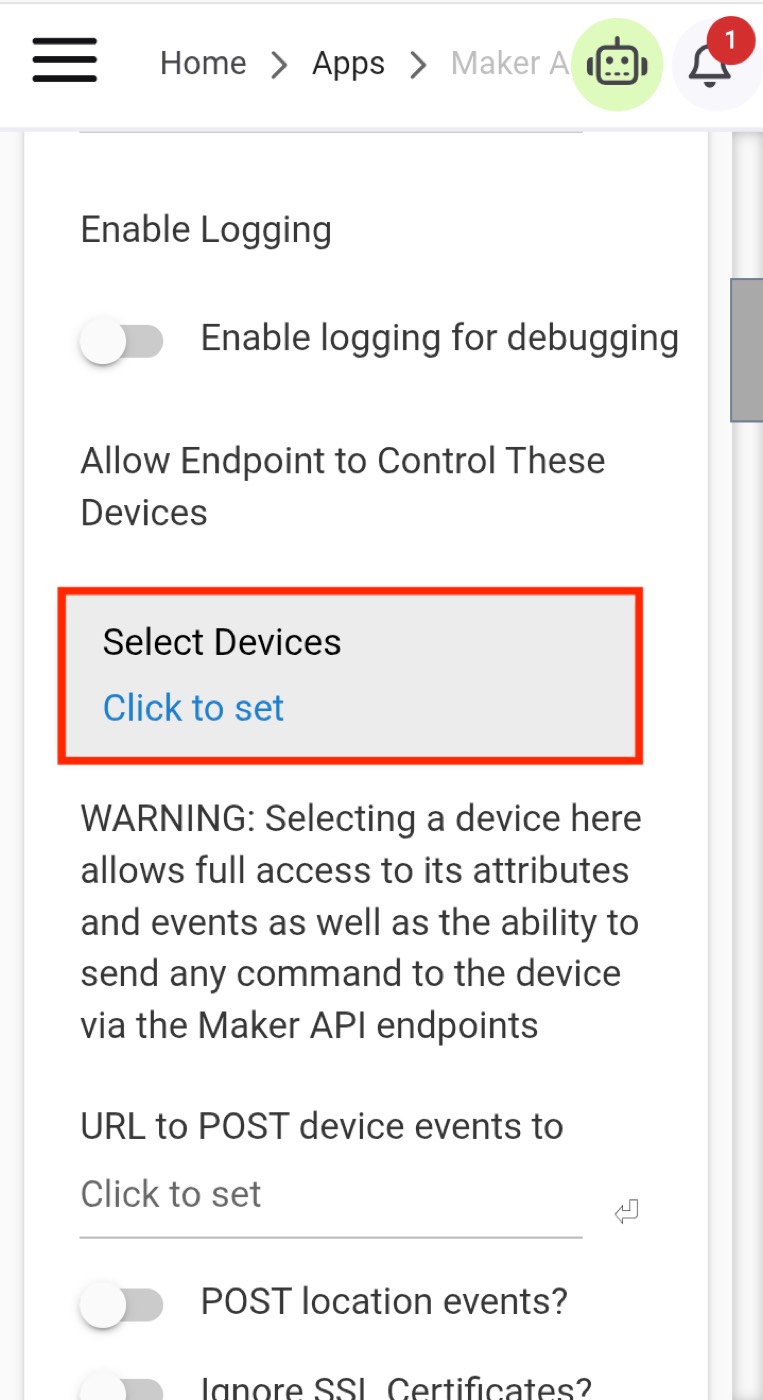
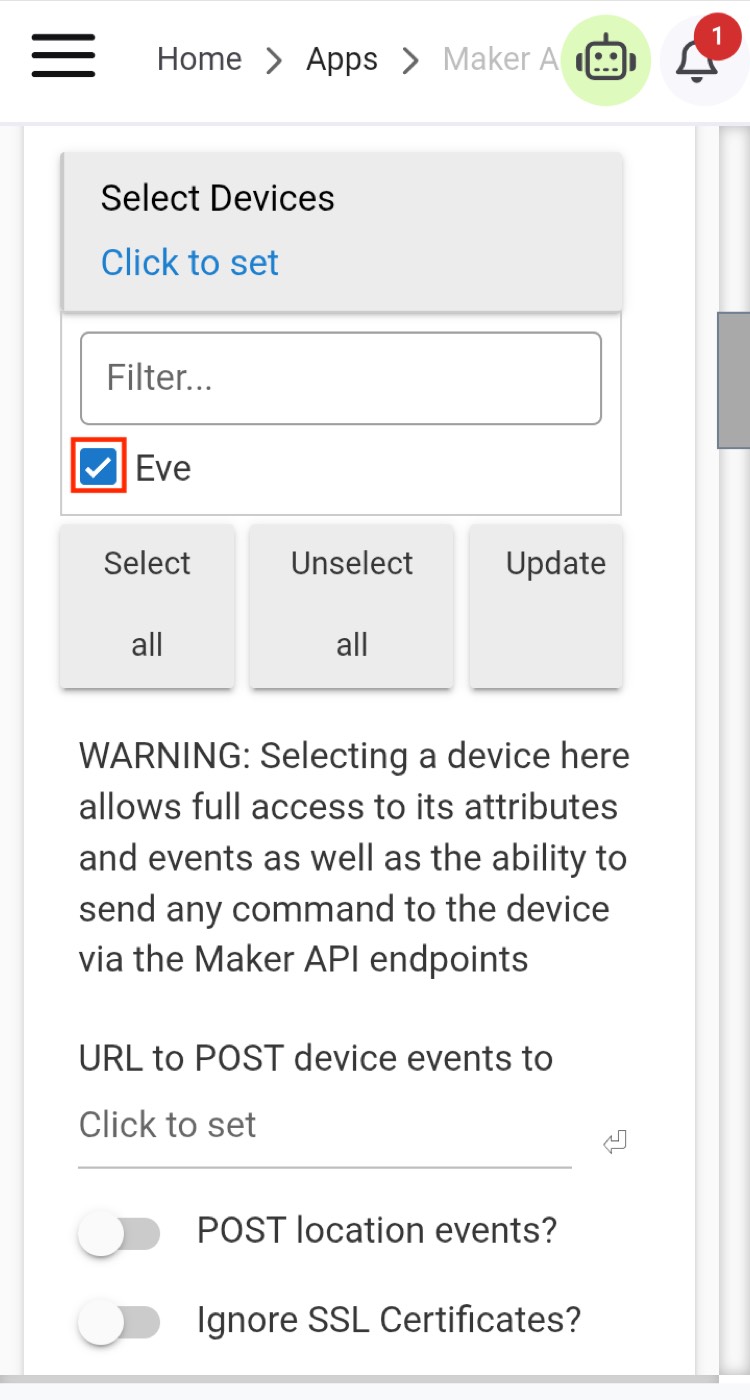
Maker API screen with Select Devices highlighted
Tap Select Devices
Device list with Eve checkbox selected
Check the devices you want to monitor
5

Copy and enter your URL

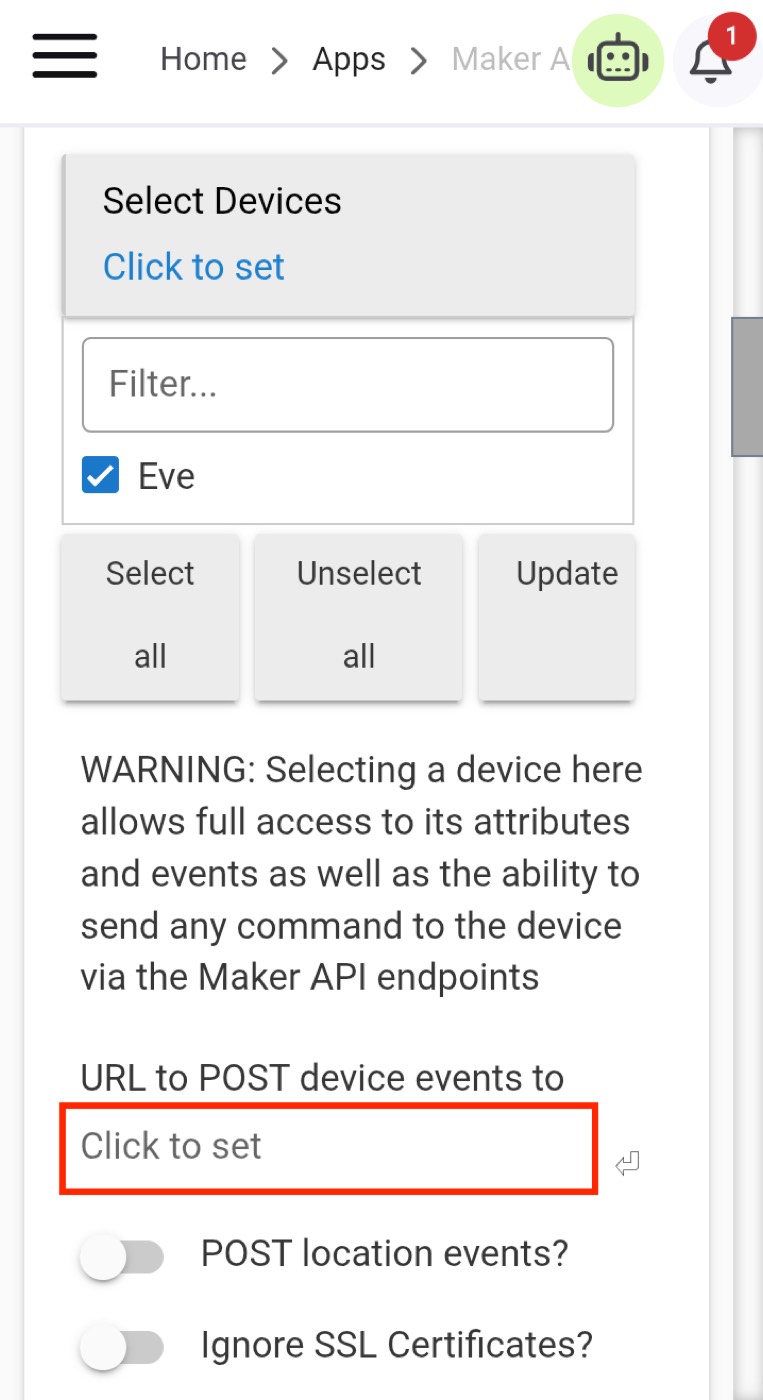
After selecting your devices, scroll slightly up on the same screen until you find the URL to POST device events to field.

Press the Copy URL button to copy your URL. Then paste the copied URL into the URL to POST device events to field.
Important Make sure you enter the correct URL so events from your selected devices can be sent to the intended destination.
Maker API URL to POST device events to field highlighted
Paste the copied URL into this field
6

Done your configuration

After selecting your devices and entering your URL, scroll down to the bottom of the page and press the Done button to save your Maker API configuration.
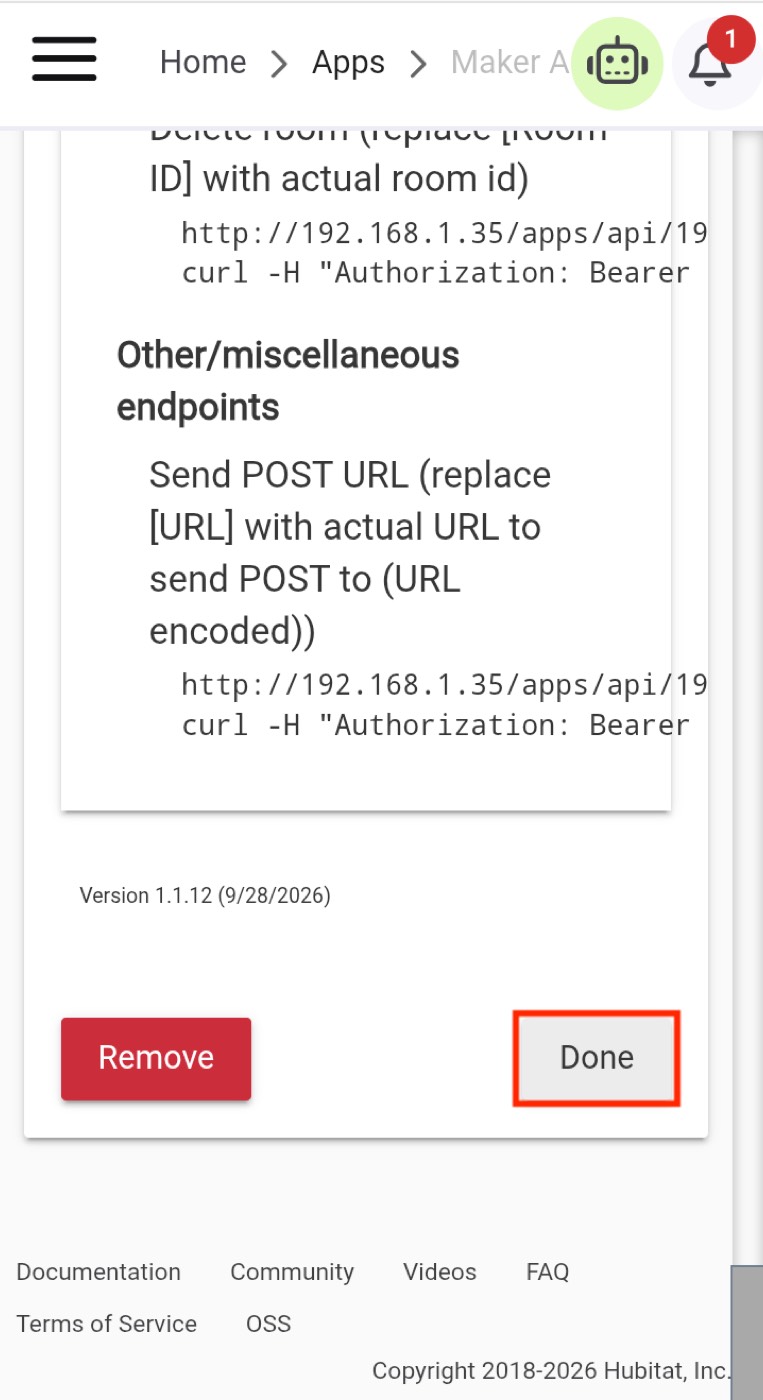
Maker API configuration screen with Done highlighted
Tap Done to save the Maker API setup
Configuration saved Maker API will now send events from your selected devices to your URL.